How to Use a Stock Scanner Alongside TradingView
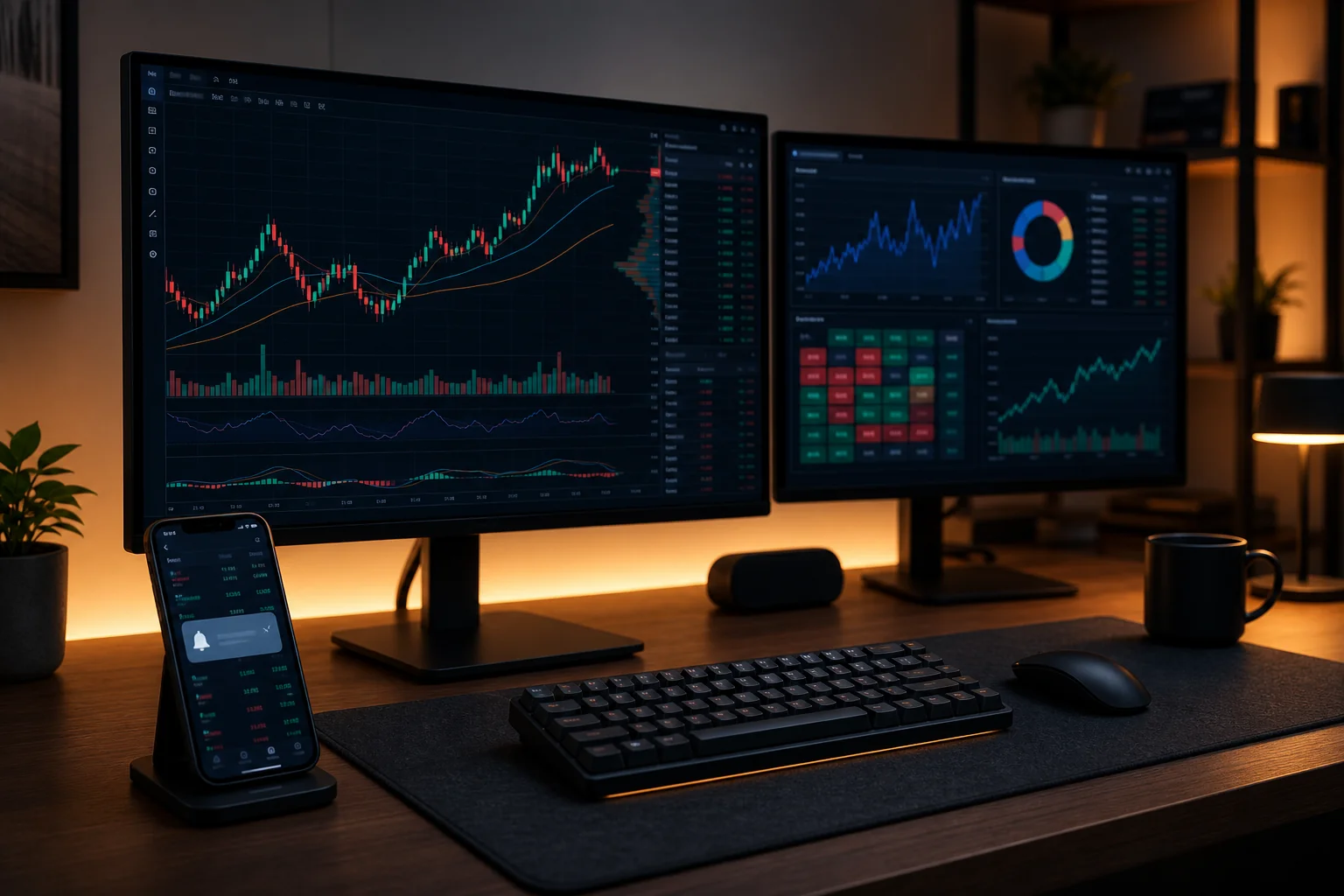
You open TradingView. The chart is beautiful. Indicators are crisp, drawing tools are precise, and the data is live. Now comes the hard part: which stock do you actually open?
That question is where a lot of swing traders with a day job lose an hour every evening. TradingView is a world-class charting platform. It is not a discovery engine. It does not tell you which of the 500+ stocks worth watching just formed a clean setup. It does not push an alert to your phone at 10:43 AM when you are in a meeting. And it does not show you the historical Win Rate of the pattern you are looking at.
A dedicated stock scanner fills exactly those gaps. This guide walks through how to use a stock scanner alongside TradingView as a two-tool workflow: scanner for discovery and backtested signal data, TradingView for chart confirmation, your broker for execution. No duplication, no alert fatigue, no replacing tools you already know.
Why TradingView Alone Leaves a Gap
TradingView's screener lets you filter by indicator values. That is useful. But it has two structural limits that matter for a trader who cannot watch charts all day.
First, there are no real-time push alerts that fire the moment a setup forms on a stock you are not already watching. You have to be in the app, on the right chart, at the right time. For a trader with a day job, that is rarely the case.
Second, TradingView's screener does not attach a backtested track record to each signal. You can see that a stock crossed its VWAP. You cannot see how often that specific pattern has historically led to a profitable trade, what the average return looked like, or how many times it has occurred. You are looking at a signal with no context about its edge.
Neither of these is a criticism of TradingView. Charting is what it is built for, and it does that exceptionally well. The gap is in the discovery and validation layer that sits upstream of the chart. That is where a dedicated scanner earns its place in the workflow.
For a deeper look at building the full workflow structure, see How to Build an Efficient Trading Workflow in 2026.
The Two-Tool Framework: Discovery + Confirmation
The cleanest way to think about this workflow is a clear division of labor between two tools, each doing what it is actually built for.
- Scanner (ChartMath): Scans 500+ US equities across 200+ curated, backtested screens every minute. Fires a push alert the moment a ticker enters a screen. Shows you the screen's filter rules in plain English, plus the historical Win Rate and Average Return for that setup. This is the discovery and validation layer.
- Charting platform (TradingView): Once you have a candidate from the scanner, you open the chart. You check the structure, draw your levels, look at volume, and confirm whether the setup holds up visually. This is the confirmation layer.
The handoff is clean: scanner surfaces the setup, TradingView confirms it, your broker executes it. No tool is doing the other's job. No duplicate work.
This is a copilot model, not autopilot. The scanner tells you what to look at and why the screen flagged it. You make the call. You place the trade. Nothing is automated.
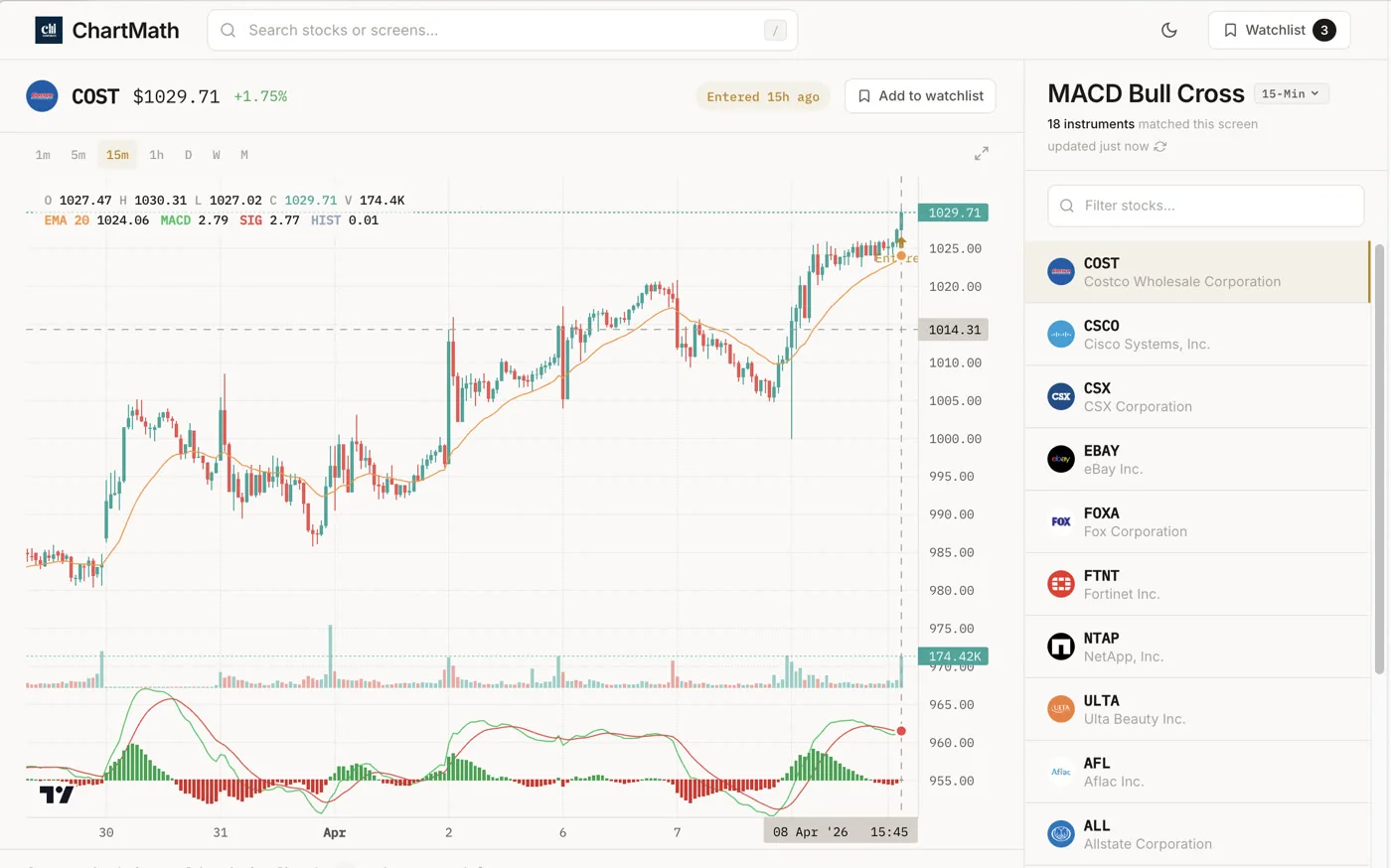
1. Set Up Your Scanner as the Discovery Layer
The first step is configuring the scanner so it surfaces setups that match your actual trading style, not every signal across every screen.
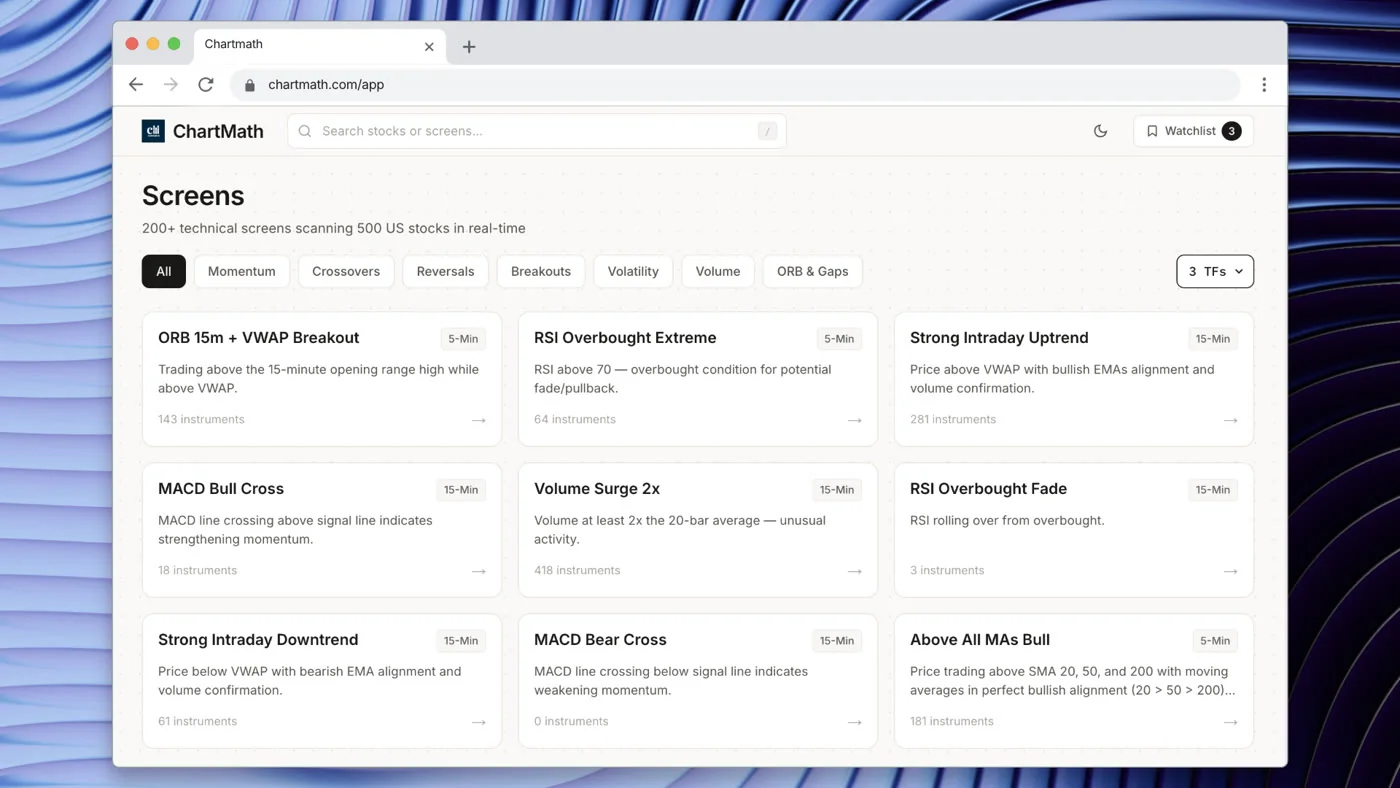
ChartMath's screen library has 200+ curated, read-only technical screens. You do not build them. You do not write Pine Script. You browse the catalog, read the plain-English description of each screen's filter rules, and favorite the ones that fit how you trade.
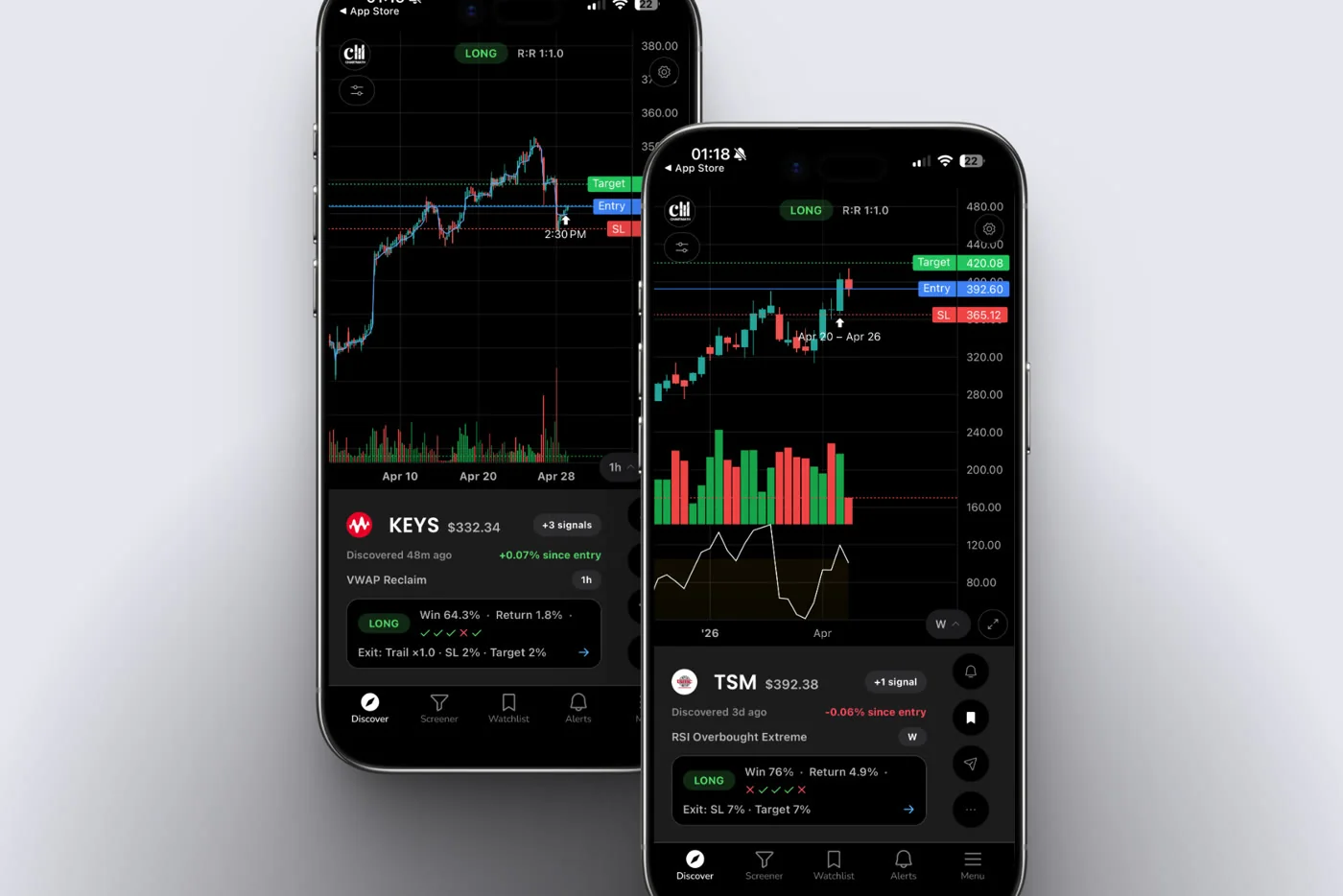
Some examples of screen categories you will find:
- VWAP Reclaim setups (intraday, 1h timeframe)
- Opening Range Breakout screens (5m, 15m)
- 52-Week High Breakout screens (Daily, Weekly)
- Low Volatility Compression setups (Daily)
- RSI Oversold Bounce screens (multiple timeframes)
- Consistent Uptrend and momentum screens
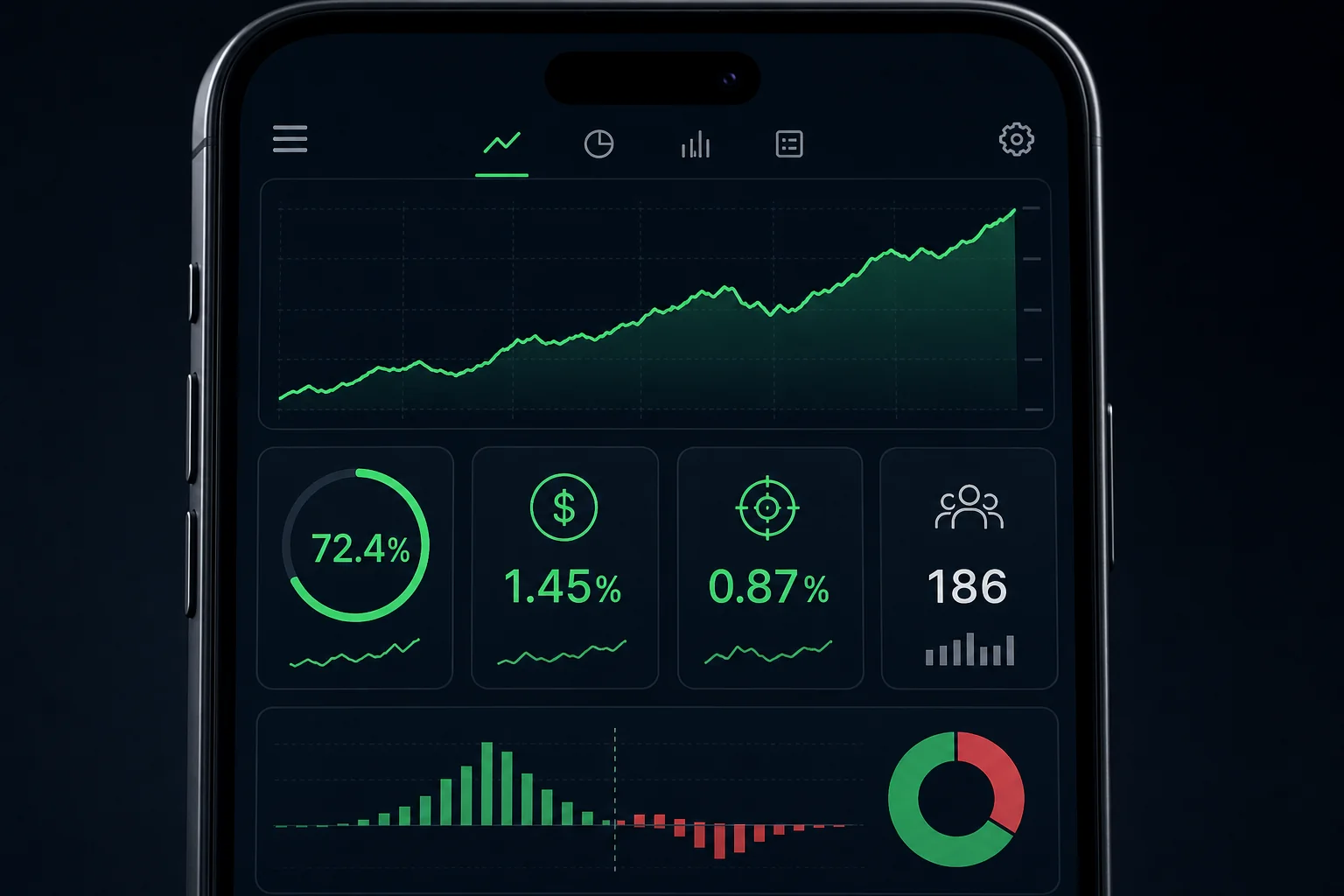
Each screen shows its backtested Win Rate, Average Return, expected value (EV), and sample size. That last number matters. A screen with 20 historical occurrences tells you much less than one with 200+. Check the sample size before you decide how much weight to give the win rate.
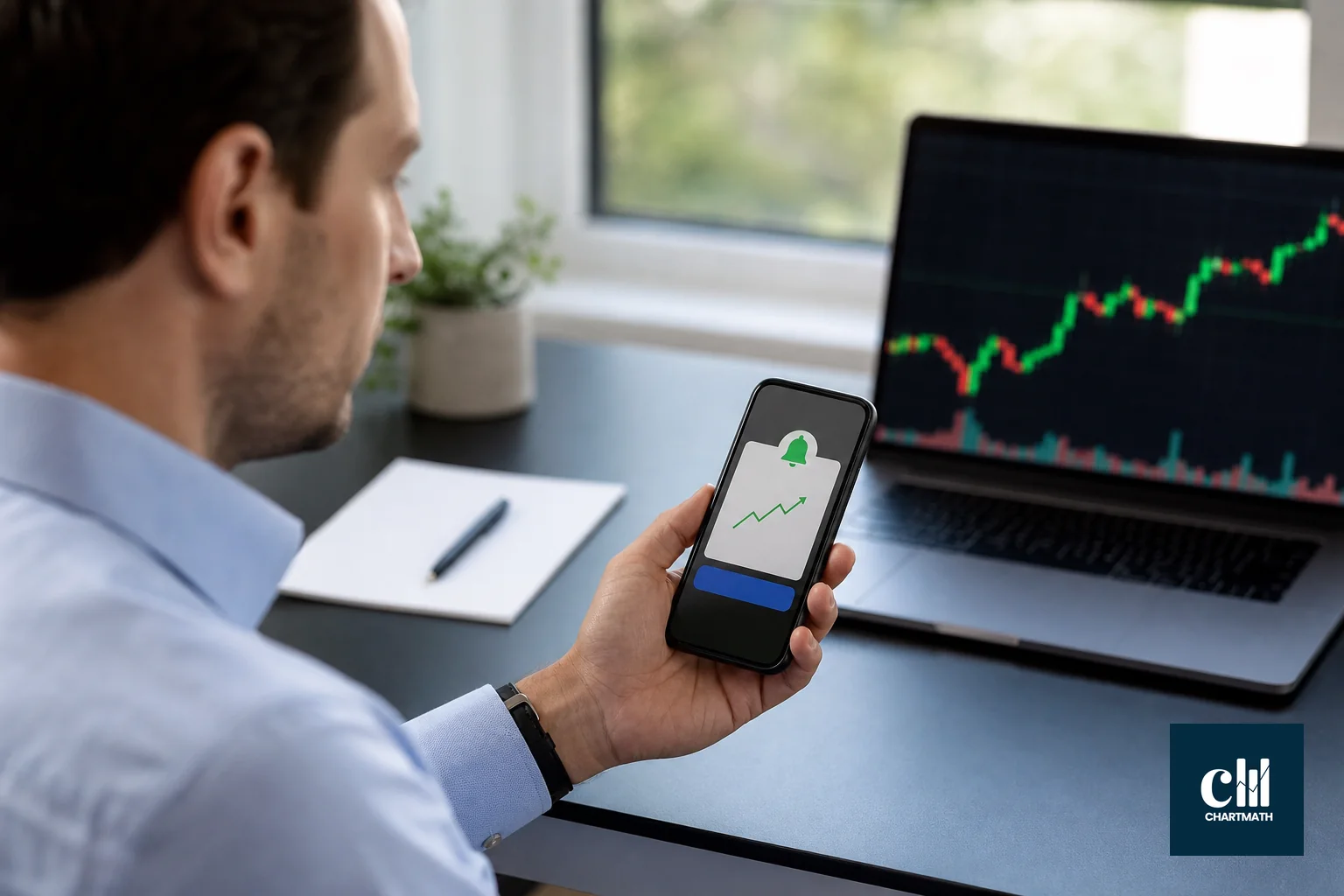
Once you have favorited the screens that match your style, enable push alerts on those favorites. From that point, ChartMath watches the 500+ US equity universe across those screens every minute. When a ticker enters one of your favorited screens, you get a push notification on your phone. You do not need to be in the app.
For traders who prefer not to use Pine Script or build custom screens from scratch, this read-only model is a significant time saver. More on that in Stock Scanner Without Pine Script: 200+ Ready-Made Screens.
2. Receive the Alert and Triage It
The alert fires on your phone. It carries the ticker symbol, the screen name, and the timeframe. That is enough to make a quick triage decision without opening a chart.
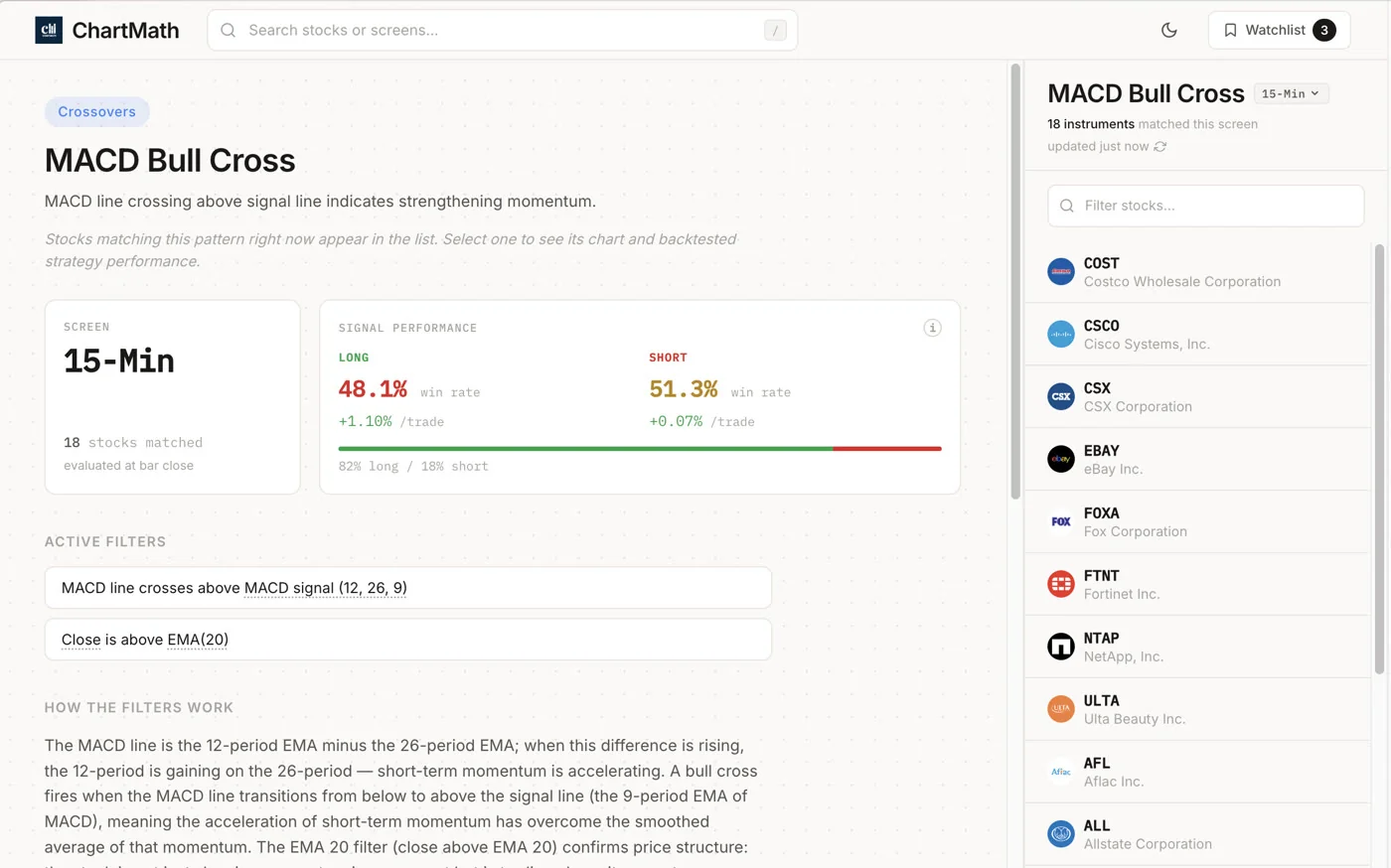
Here is the 60-second triage process:
- Is this a screen I care about? If you have favorited only the screens that match your style, this is almost always yes. If you are getting alerts from screens you do not trade, trim your favorites list.
- What is the Win Rate and Average Return for this screen? Open the alert, tap through to the screen card. Check the backtested metrics. A screen with a strong historical Win Rate and positive average return is worth a closer look. A screen with a weak track record or tiny sample size is lower priority.
- Is this a stock I already know? If the ticker is already on your watchlist, this alert is a signal that the setup you have been waiting for may be forming. That moves it to the top of the queue.
The goal at this stage is not to make a trading decision. It is to decide whether this ticker is worth opening TradingView for. Most alerts will not make the cut. That is fine. The scanner is doing the filtering work so you do not have to.
Alert fatigue is a real problem with lower-quality scanners. ChartMath handles this with de-duplication and a per-bar cap, so you are not getting the same alert five times on the same setup. For more on managing signal noise, see How to Avoid Alert Fatigue From Stock Screeners, or the related piece on How to Integrate Trading Alerts with Your Charting Platform.
3. Confirm on TradingView Before You Trade
The alert passed triage. Now you open TradingView.
This is where TradingView does what it is best at. Pull up the chart on the timeframe the alert fired on. Then work through a short confirmation checklist:
- Does the chart structure support the setup? If the screen flagged a VWAP Reclaim, is price actually holding above VWAP with a clean reclaim candle? If it flagged a 52-week high breakout, is the breakout happening on meaningful volume or is it a low-volume drift?
- What does the higher timeframe say? Even if the alert fired on a 1-hour chart, check the daily. Is the stock in an uptrend? Is there a major resistance level just above the entry? Higher timeframe context filters out a lot of marginal setups.
- Where is your stop? Define it before you look at the entry. For a VWAP Reclaim, the stop is typically just below VWAP. For an ORB breakout, it is below the opening range low. If the stop placement makes the risk-reward unattractive, pass.
- Where is your target? Identify the next meaningful resistance level. If the distance from entry to target is less than 2x the distance from entry to stop, the setup does not meet a basic risk-reward threshold.
If the chart confirms all four points, you have a trade. If it does not, you pass and wait for the next alert. The scanner keeps watching. You do not have to.
For a deeper look at VWAP-based confirmation, see VWAP Trading: How to Use Volume-Weighted Average Price.
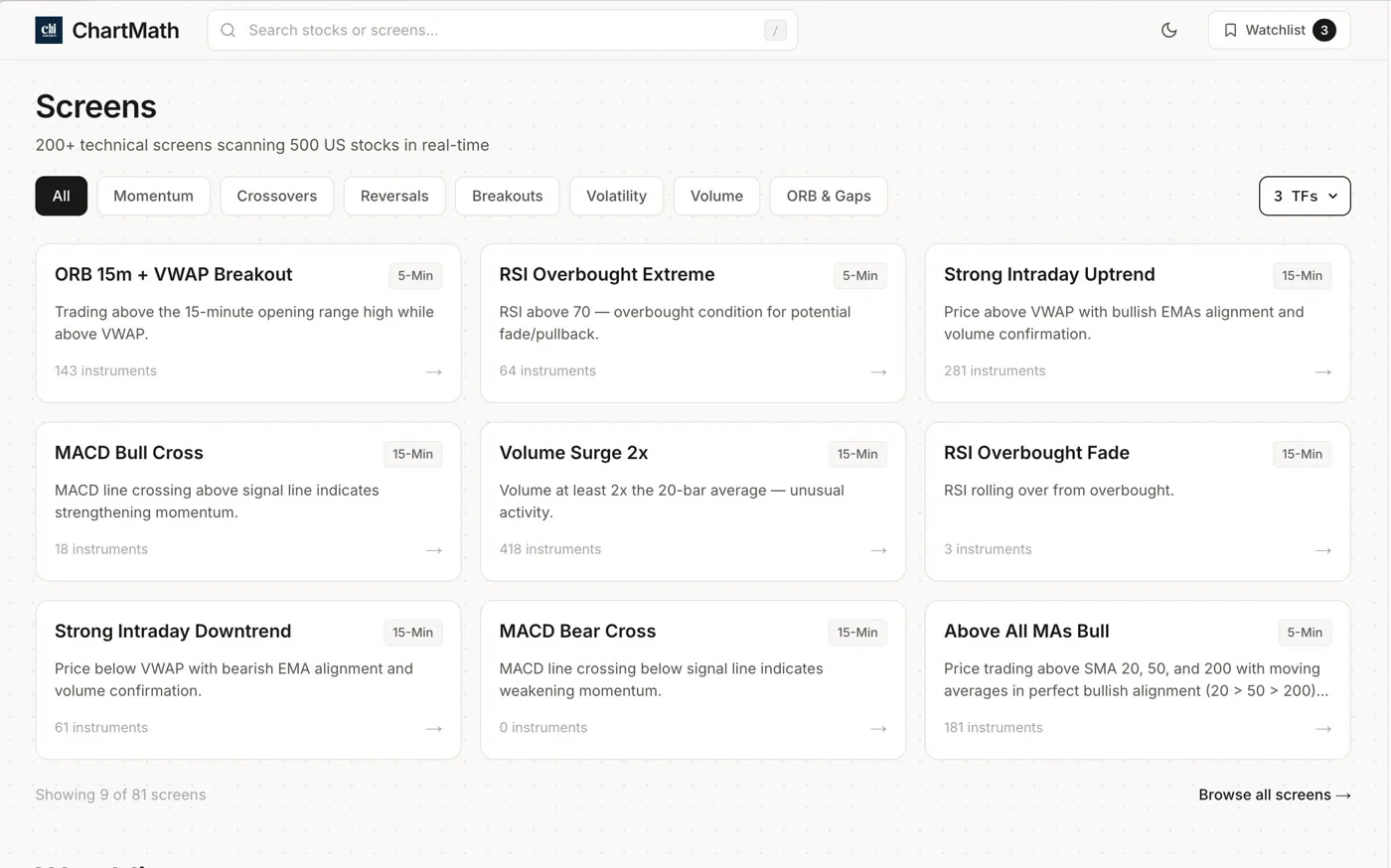
4. Execute in Your Own Broker
ChartMath is a discovery and research tool. It has no broker connection and does not place orders. Once TradingView confirms the setup, you execute in whatever brokerage you use.
This separation is a feature, not a limitation. Keeping discovery, confirmation, and execution in three distinct steps forces a deliberate process. You cannot impulsively act on an alert without going through the confirmation step first. That friction is protective.
The full workflow looks like this:
- ChartMath alert fires on your phone (discovery layer)
- You check the screen's Win Rate and Average Return on the card (validation layer)
- You open TradingView and confirm the chart setup (confirmation layer)
- You define entry, stop, and target (planning layer)
- You execute in your broker (execution layer)
Each layer has a job. None of them overlap. The total time from alert to order, for a setup that passes all checks, is typically under five minutes. For a trader with a day job, that is a realistic window during a lunch break or between meetings.
For a full breakdown of how to build this kind of layered system, see Swing Trading with a Full-Time Job: A Real System.
Avoiding Duplicate Work and Alert Fatigue
The most common mistake traders make when adding a scanner to an existing TradingView workflow is over-configuring it. They favorite 40 screens, get 30 alerts a day, and end up ignoring all of them. That is not a workflow. That is noise.
A few rules that keep the workflow clean:
- Favorite only the screens you actually trade. If you are a swing trader focused on daily chart setups, you do not need 1-minute ORB alerts. Start with three to five screens that match your style. Add more only when you have a clear reason.
- Use the Discover feed for end-of-day review, alerts for real-time triage. The Discover feed in ChartMath is a swipe-based feed of setup cards across all screens. It is useful for evening prep: browse what fired today, build your watchlist for tomorrow. Alerts are for catching setups during the day when you cannot be in the app.
- Keep your TradingView watchlist short. The scanner's job is to surface new candidates. Your TradingView watchlist should reflect the shortlist you have already confirmed, not every ticker that ever appeared in an alert. A watchlist of 10 to 15 stocks is manageable. A watchlist of 80 is not.
- Review your alert history weekly. Look at which screens fired the most alerts and which ones led to setups you actually traded. Trim the screens that generated noise without generating trades.
ChartMath's alert system includes de-duplication and a per-bar cap, which means the same setup will not fire multiple alerts on the same bar. That handles a lot of the noise at the infrastructure level. The rest is configuration discipline on your end.
Practical Example: VWAP Reclaim Setup
Here is how the workflow plays out in practice with a concrete setup type.
It is 11:20 AM. You are at your desk at work. Your phone buzzes with a push alert from ChartMath: a ticker has entered the VWAP Reclaim screen on the 1-hour timeframe.
You tap the alert. The screen card shows the filter rules: price reclaimed VWAP after trading below it, with volume confirmation. You check the screen's backtested Win Rate and Average Return. The sample size is substantial. This screen has a documented track record worth taking seriously.
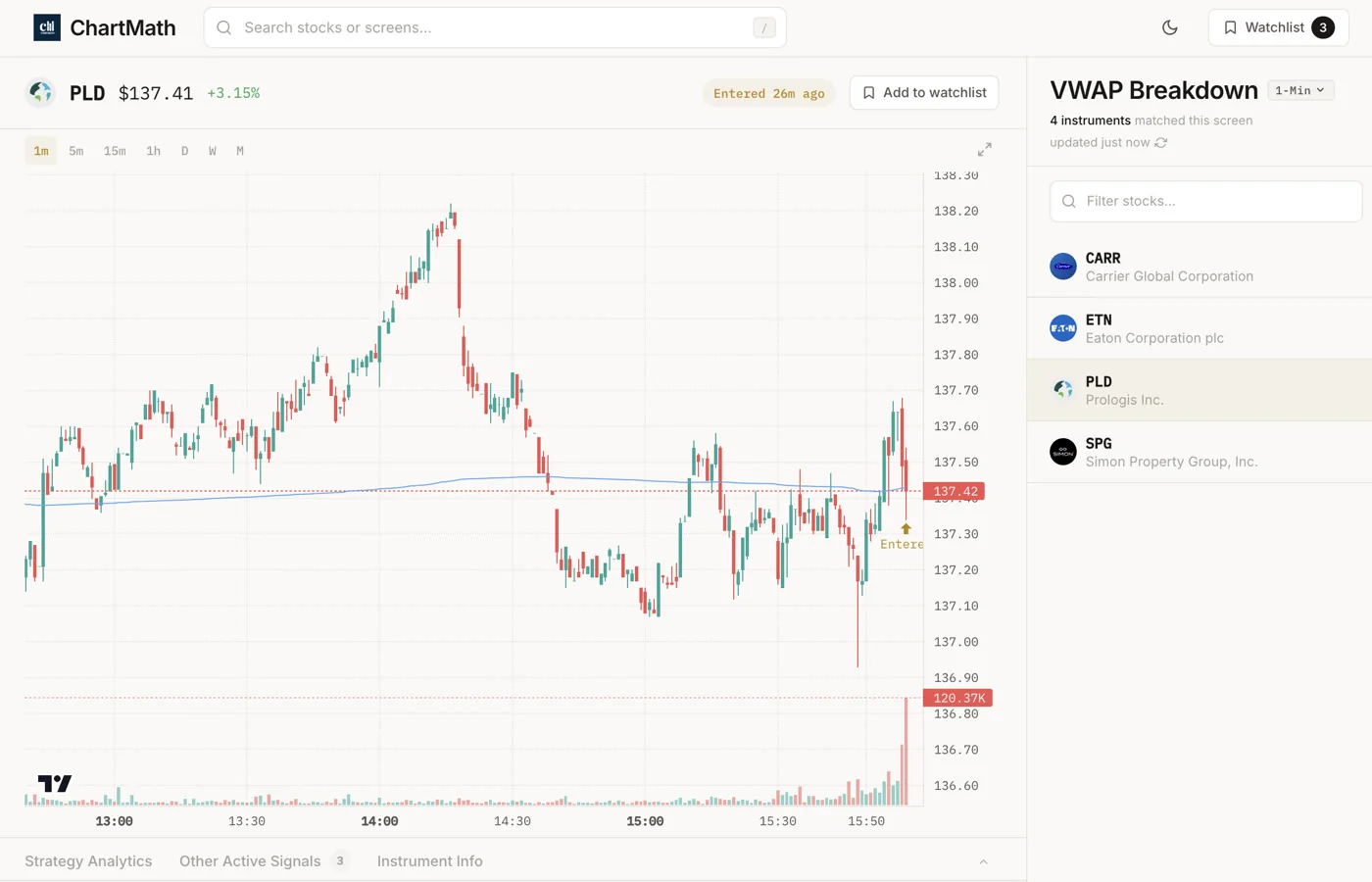
You open TradingView on your phone. You pull up the ticker on the 1-hour chart. Price reclaimed VWAP cleanly on the candle that just closed. Volume on that candle is above average. The daily chart shows the stock is in a broader uptrend with no major resistance for several points above the current price.
From there, defining the trade is straightforward: entry just above the reclaim candle's high, stop just below VWAP, target at the next resistance level on the daily chart. The risk-reward is better than 2:1. The setup passes.
Over in your brokerage app, you place the order. The whole process took four minutes.
That is the workflow. The scanner did the scanning. TradingView did the confirmation. Your broker executed the trade. You made the decision at every step.
For more on VWAP Reclaim as a setup, see VWAP Trading: How to Use Volume-Weighted Average Price. For how relative volume factors into that confirmation step, see Volume Analysis for Day Traders: How to Use RVOL and Volume Spikes.
Frequently Asked Questions
Does ChartMath integrate directly with TradingView?
No. There is no formal integration between ChartMath and TradingView. They are separate tools used at different stages of the workflow. ChartMath handles discovery and backtested signal data. TradingView handles chart confirmation. You use them side by side, not connected. That is intentional: the two-step process keeps you in control of every decision.
Can I use ChartMath on desktop or only mobile?
ChartMath is mobile-first, with iOS and Android apps. There is also a read-only web browse layer at chartmath.com/screens where you can browse the screen catalog without signing in. Push alerts and the full Discover feed require the mobile app. The web layer is useful for end-of-day research on a desktop.
Do I need to know Pine Script to use ChartMath?
No Pine Script, no coding, no screen builder. The 200+ screens are curated and read-only. You browse them, favorite the ones that match your style, and enable alerts. That is the entire setup process. For traders who have spent time wrestling with Pine Script on TradingView, this is a meaningful difference. More on that in Stock Scanner Without Pine Script: 200+ Ready-Made Screens.
What markets does ChartMath cover?
ChartMath is US-first. The universe is 500+ US equities (NYSE and Nasdaq), 100 crypto pairs, and 11 US futures, across 7 timeframes from 1-minute to monthly. All session references align to Eastern Time. There is no coverage of Indian markets or NSE-listed stocks.
What does the alert actually tell me?
The alert carries the ticker symbol, the screen name, and the timeframe. When you tap through to the screen card, you see the screen's filter rules in plain English and its backtested metrics: Win Rate, Average Return, EV, and sample size. The same metrics apply to every stock entering that screen. The alert is the trigger; the card is the context.
Is ChartMath free?
Yes. ChartMath is free. No credit card required.
Start Using the Two-Tool Workflow Today
TradingView is not going anywhere. You do not need to replace it. What you need is a discovery layer that tells you which stocks to open in TradingView in the first place, and a validation layer that shows you the historical edge behind each setup before you risk capital.
ChartMath handles both. It scans 500+ US equities across 200+ backtested screens, fires push alerts the moment a setup forms, and shows you the Win Rate and Average Return for every screen, all without Pine Script or coding.
The workflow is: ChartMath surfaces the setup, TradingView confirms it, your broker executes it. Three tools, three jobs, no overlap.
Browse the screen catalog at chartmath.com/screens to see which setups match your trading style. When you are ready to get alerts on your phone, download the ChartMath app and start for free.

See these setups live in ChartMath
200+ curated screens with backtest data. Free. No credit card required.