Get Stock Alerts to Your Phone While at Work
Your calendar says 10:45 AM. Your next meeting starts in three minutes. Somewhere in the market, a stock you've been tracking for two weeks just cleared a key resistance level on elevated volume. You won't know about it until 5:30 PM, when the move is already done and the chart looks obvious in hindsight. That's not a strategy problem. That's an alert problem.
Getting stock alerts to your phone while at work sounds simple. In practice, most traders either get too many (a flood of low-context pings that train you to ignore your phone) or too few (a price alert that fires but tells you nothing about whether the setup is actually worth acting on). This guide walks through how to build a system that does the scanning while you're heads-down, sends you only what matters, and gives you enough context to make a real decision in under 30 seconds.
Why Most Stock Alert Systems Fail the 9-to-5 Trader
The dirty secret of most stock scanning tools is that they were designed for traders who are already at their desks. TradingView's alert system is powerful, but it requires you to pull up a chart, identify the setup yourself, and then write a condition in Pine Script or navigate a multi-step alert builder. Trade Ideas is a genuinely impressive platform, but it's desktop-only and built for professional day traders running multiple monitors. Finviz updates end-of-day, which means any intraday momentum play is invisible to you until the session is over.
None of these tools were designed around the constraint that defines most retail traders: you have a job, and the market is open while you're in it.
The Alert Spam Problem
The other failure mode is alert fatigue. Set too many price alerts across too many tickers, and your phone becomes a noise machine. After a few days of dismissing notifications that don't mean anything actionable, you start ignoring them entirely. The one alert that actually matters fires on a Thursday at 11:20 AM, and you've already trained yourself to swipe it away.
The fix isn't fewer alerts. It's smarter alerts: ones that fire only when a real setup triggers, explain why they fired, and give you enough data to decide whether to act. That's the difference between a notification and a signal.
What a Good Mobile Alert Actually Needs
For a stock alert to be useful when you're at work, it needs to do four things. First, it needs to reach your phone in real time, not end-of-day. Second, it needs to be based on a setup you'd actually take, not just a price crossing an arbitrary level. Third, it needs to tell you why it fired, so you can triage it in seconds. Fourth, it needs to link directly to more detail, so you can dig in during a break without hunting through a desktop platform.
Most alert systems handle the first requirement. Almost none handle the other three.
1. Decide What You Actually Want Alerts For
Before you configure a single notification, get clear on your setup types. This sounds obvious, but most traders skip it and end up with alerts that don't match their actual strategy.
If you're a swing trader with a day job, your core setups are probably on the daily and weekly timeframes: breakouts above multi-week bases, 52-week high extensions, VWAP reclaims on the daily, or momentum continuation patterns. You're not trying to scalp the open. You're looking for entries you can plan the night before and execute at the open or during a brief midday window.
If you're more active and check your phone during market hours, you might also want 1-hour timeframe alerts for intraday momentum plays: opening range breakouts, RVOL spikes, or VWAP reclaims on the 1h chart. These fire during the session and give you a reason to check the chart on your lunch break.
The key is matching your alert types to your review schedule. If you only look at your phone at lunch and after 5 PM, daily and weekly signals are your primary feed. If you can steal a few minutes at 10:30 AM and 1 PM, 1-hour alerts become worth setting up. Know your windows before you configure anything.
For a deeper look at building a full trading workflow around a day job, see How to Build an Efficient Trading Workflow in 2026.
2. Choose a Scanner That Sends Alerts to Your Phone
Not all scanners are equal when it comes to mobile delivery. Here's what to look for when evaluating whether a tool can actually serve you during work hours.
Push Notifications, Not Just Email
Email alerts are better than nothing, but they're easy to miss during a busy workday. Push notifications go directly to your lock screen and are harder to ignore. The best setup uses both: push for real-time triage, email as a backup log you can review after hours.
Setup-Based Alerts, Not Just Price Alerts
A price alert tells you a stock hit $150. A setup-based alert tells you a stock just entered a 52-week high breakout screen on the daily timeframe with elevated relative volume. The second one gives you a reason to care. It tells you the context, not just the number.
This is the core distinction between a price alert tool and a trade-discovery app. Price alerts require you to already know which stocks to watch and at what levels. Setup-based alerts do the scanning for you and surface new opportunities you weren't already tracking.
Real-Time Scanning Across a Curated Universe
You want a scanner that's running continuously during market hours, not one that refreshes every 15 minutes or updates end-of-day. And you want it scanning a curated universe of quality names, not every micro-cap and pink sheet on the exchange.
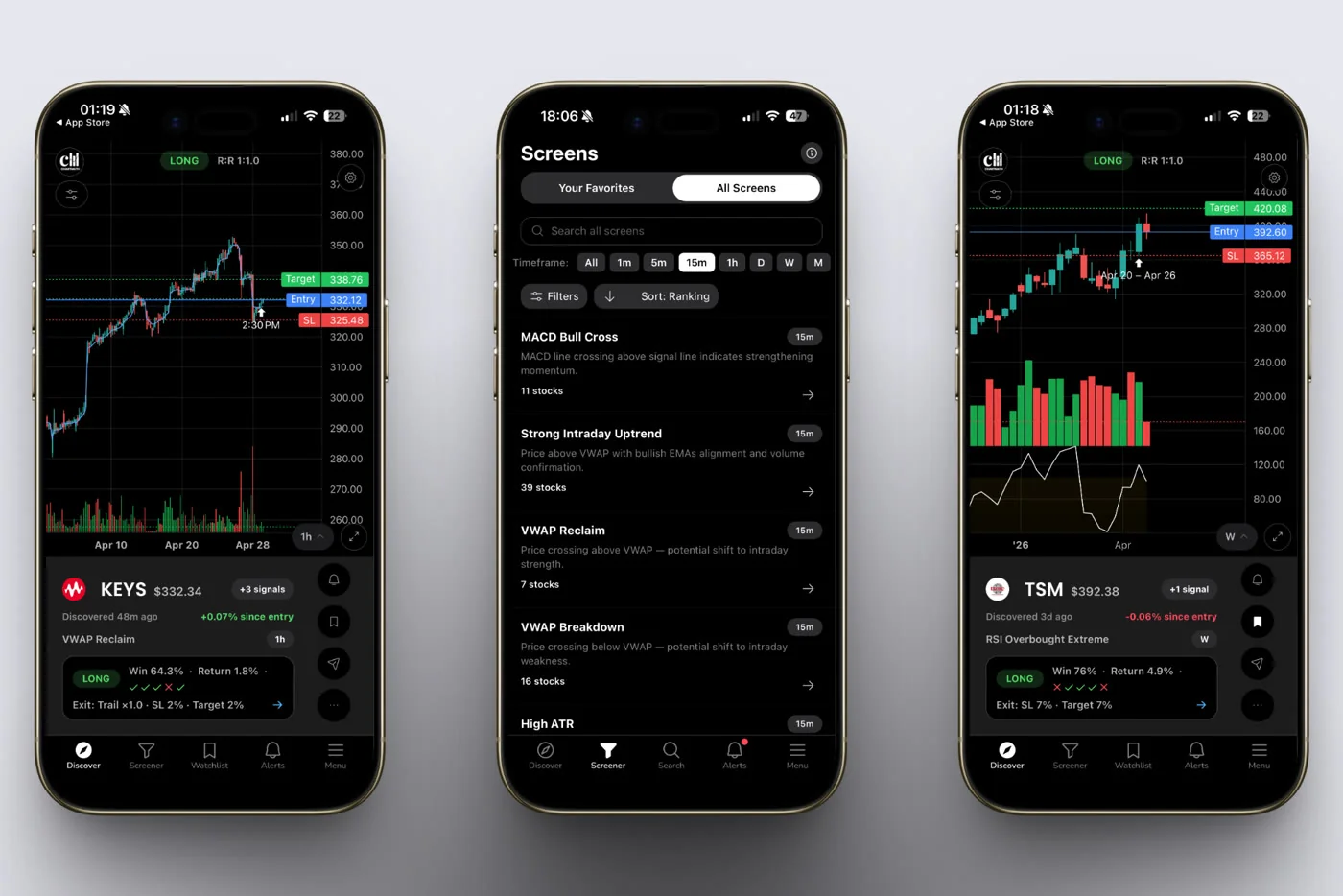
ChartMath is built specifically for this use case. It's a mobile-first trade-discovery app that scans 500+ US equities, 100 crypto pairs, and 11 US futures across 200+ curated technical screens and 7 timeframes (1-minute to monthly). Alerts go out via push and email the moment a ticker enters a screen. No Pine Script. No coding. No desktop required.
It's worth comparing this to the alternatives. TradingView requires you to write Pine Script or navigate a complex alert builder for each ticker individually. Trade Ideas is desktop-only and starts at $118/month. Finviz has no real-time alerts and no mobile app. ChartMath is free, every screen, every backtest, every alert.
For a direct comparison of scanner options, Switching from Trade Ideas to a Cheaper Scanner: What You'll Gain and Lose breaks down the tradeoffs in detail.
3. Set Up Your Screens Around Your Schedule
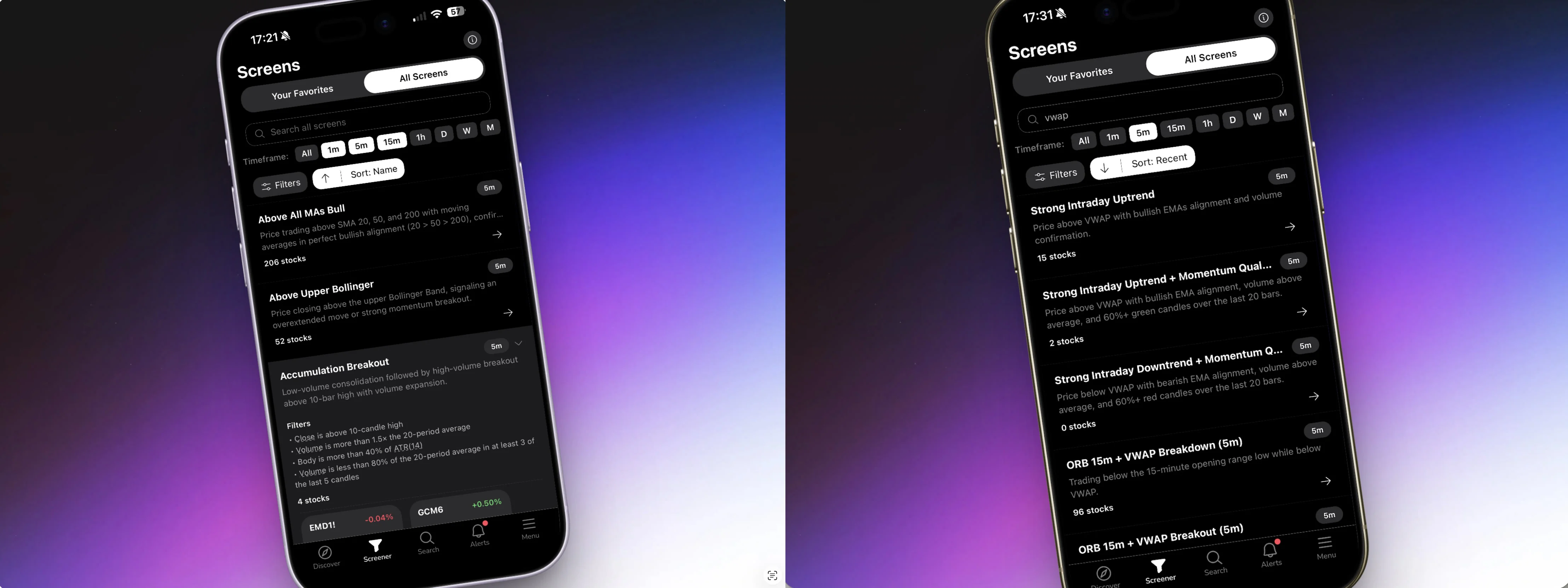
Once you've chosen your tool, the next step is configuring which screens trigger alerts. In ChartMath, this works through the Screener tab. You browse the 200+ curated, read-only technical screens, find the ones that match your setups, and favorite them. Favoriting a screen is what activates screen-enter alerts for that screen.
How Screen-Enter Alerts Work
A screen-enter alert fires the moment a ticker enters a screen you've favorited. So if you've favorited the "52-Week High Breakout" screen on the daily timeframe, you get a push notification the moment any stock in the universe clears that level with the required volume confirmation. You don't have to be watching. The app is watching for you.
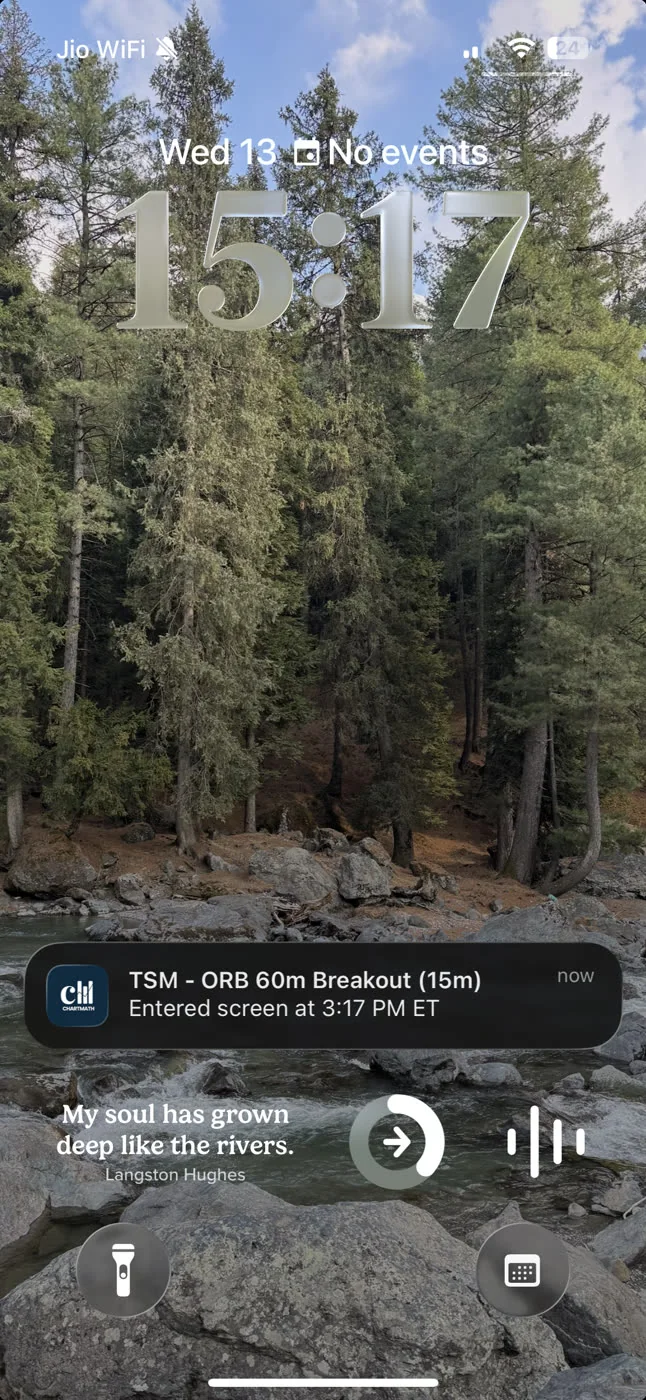
The alert payload tells you the ticker, the timeframe, the screen name, a plain-English explanation of why it fired, a timestamp, and a deep link back into the app. You can read it in 10 seconds and decide whether it's worth a closer look.
Choosing the Right Timeframes
For swing traders with day jobs, the daily and weekly timeframes are the primary signal sources. These fire less frequently, which means less noise, and they align with setups you can plan and execute around your schedule. The 1-hour timeframe is useful if you can check your phone during market hours. The 1-minute and 5-minute timeframes are for active intraday traders who are closer to the screen.
Start with daily. Add 1-hour if your schedule allows. Don't set up 1-minute alerts if you can't act on them. Alerts you can't act on are just noise.
Keeping the Universe Focused
ChartMath scans 500+ US equities (NYSE/Nasdaq), plus 100 crypto pairs and 11 US futures. The US equity universe is the primary focus for most swing traders. Crypto and futures coverage is there when you want it, but you don't have to use it. If your strategy is equity-only, your alerts will be equity-only. The app doesn't force you to track everything.
4. Configure Alerts That Don't Spam You
Alert fatigue is one of the most underrated problems in trading. It's not just annoying. It's dangerous. When you're conditioned to ignore your phone because 80% of alerts are low-quality, you'll miss the 20% that matter. The goal is a notification feed where every ping is worth reading.
ChartMath's Notification Hygiene
ChartMath builds several layers of alert hygiene into the system. De-duplication prevents the same setup from firing multiple times for the same ticker in a short window. Throttling limits how many alerts can fire per bar. A per-bar cap prevents a single volatile session from flooding your phone. Timezone-aware quiet hours mean you're not getting pinged at 3 AM for a setup that can wait until morning.
These aren't features you have to configure manually. They're built into the alert engine. The result is a notification feed that stays manageable even when the market is active.
Push vs. Email: When to Use Each
Use push notifications for real-time triage during the day. A quick glance at the lock screen tells you whether the alert is worth a 30-second look during a break. Use email as your end-of-day log. After the session closes, you can review everything that fired, cross-reference with your watchlist, and plan your entries for the next morning.
Both channels carry the same payload: ticker, timeframe, screen name, plain-English reason, timestamp, and deep link. The difference is timing and context. Push is for now. Email is for later.
If alert fatigue has been a problem with your current setup, How to Avoid Alert Fatigue From Stock Screeners: The Swing Trader's Fix covers the full framework for getting this right.
5. Read an Alert in 30 Seconds Without Leaving Your Desk
The best mobile alert system is useless if reading an alert takes five minutes and requires opening three different apps. The goal is to triage in under 30 seconds and decide: act on this later, add to watchlist, or dismiss.
What ChartMath's Alert Tells You
When a ChartMath alert fires, the notification itself tells you the ticker, the screen it entered, the timeframe, and a plain-English sentence explaining why it triggered. Something like: "AAPL entered the VWAP Reclaim screen on the 1-hour timeframe." You know immediately whether this is a setup type you trade and whether the timeframe fits your schedule.
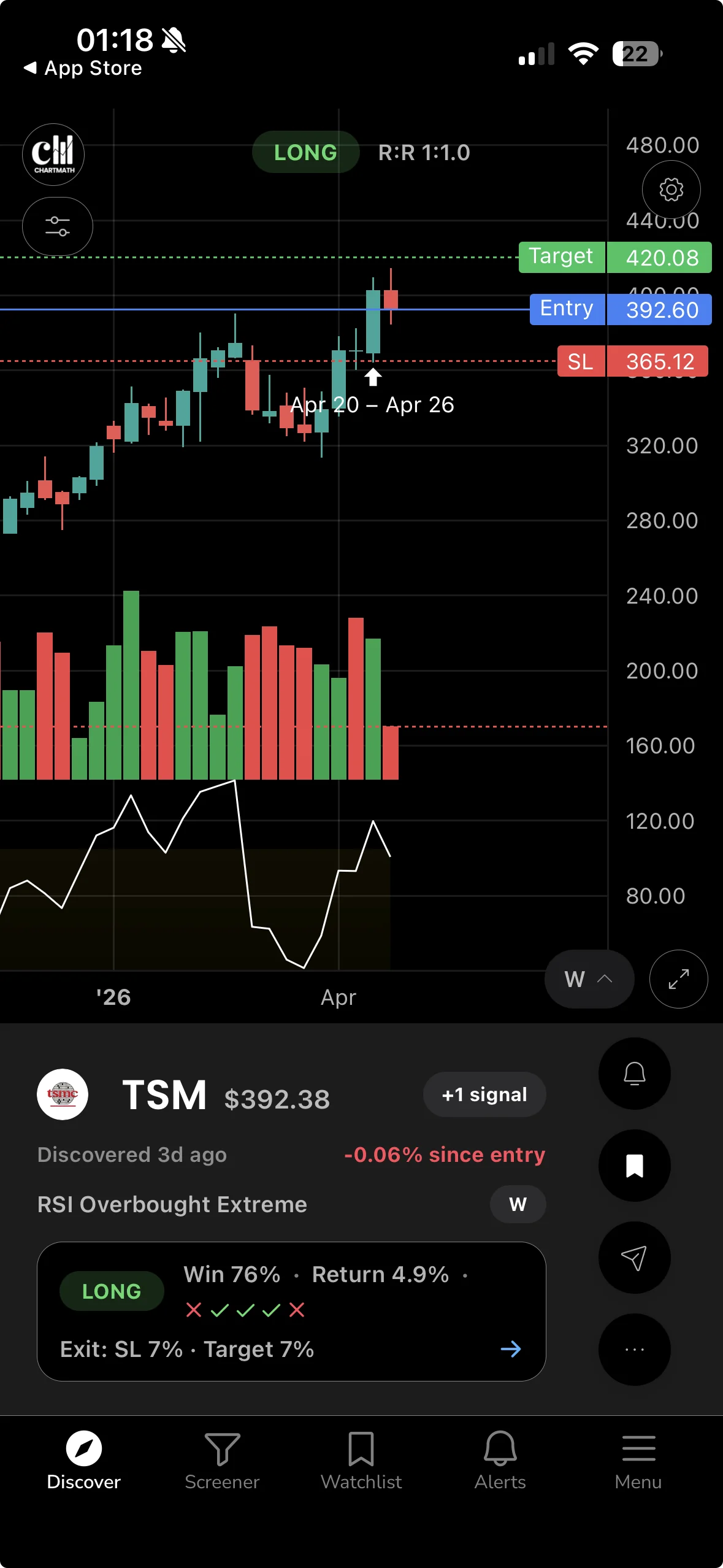
Tap the deep link and you're inside the app, looking at the setup card. The card shows the Win Rate and Average Return for that screen based on historical backtests, plus the sample size and expected value. You're not guessing whether this setup has an edge. The data is right there.
The Discover Feed as Your Morning Briefing
Beyond individual alerts, ChartMath's Discover tab gives you a swipe-based feed of the highest-quality setups across the entire universe, ranked by backtested reliability and recency. Each card shows the symbol, the screen it matched, the timeframe, and the key metrics. You can swipe through 10 cards in two minutes and have a clear picture of what's setting up today.
This is your premarket briefing. Five minutes with the Discover feed before your first meeting tells you more than 45 minutes of manual scanning the night before.
For more on how VWAP-based setups work in practice, see VWAP Trading: How to Use Volume-Weighted Average Price.
Copilot, Not Autopilot
One thing worth being clear about: ChartMath surfaces setups and sends alerts. It does not place trades. There is no broker connection, no in-app order entry, no automated execution. You make the call. You place the trade in your own brokerage account. ChartMath is a copilot, not an autopilot. That's intentional. The final decision always stays with you.
6. Build a Workflow That Fits Around Work Hours
The system only works if it fits your actual schedule. Here's a practical daily workflow for a swing trader with a 9-to-5.
Premarket (5 to 10 Minutes)
Before you leave for work or sit down at your desk, open ChartMath and check the Discover feed. Swipe through the top setups. Look at what fired overnight on the daily and weekly timeframes. Add anything interesting to your single watchlist. This takes five minutes and gives you a clear picture of what to watch during the session.
You're not making trade decisions yet. You're building your shortlist for the day.
Midday (2 to 3 Minutes)
If you can steal a few minutes at lunch, check your push alerts from the morning session. The app's Alerts tab shows everything that fired, in order, with timestamps. Triage quickly: which ones are on your watchlist? Which ones match your setup types? Flag anything worth a closer look after hours.
You're not executing trades here either. You're triaging. The goal is to know what happened during the session so you can review it properly after the close.
Postmarket (15 to 20 Minutes)
This is your real work session. After the market closes, open your charting platform (TradingView, TrendSpider, or whatever you use) and pull up the tickers that fired alerts during the day. Review the setups. Check the daily charts. Confirm whether the entry is still valid for tomorrow's open or whether the move already played out.
Update your watchlist in ChartMath. Set any additional alerts for tickers you want to monitor closely. Plan your position sizes. Then close the laptop and stop thinking about it until tomorrow morning.
For a complete breakdown of the after-hours scanning routine, How to Trade Stocks Without Watching Screen All Day covers the full postmarket workflow.
Using the Watchlist Effectively
ChartMath has one watchlist, synced across your iOS and Android devices. It's not a portfolio tracker or a social list. It's your shortlist of tickers you're actively monitoring. Keep it tight. Ten to twenty names is plenty. A watchlist with 80 tickers is just a screener with extra steps.
When a ticker on your watchlist enters a screen you've favorited, you get an alert. That's the combination that makes the system work: a curated watchlist plus favorited screens equals targeted, relevant notifications instead of generic market noise.
7. Verify Before You Trade: Don't Act on an Alert Blind
An alert is a signal to look, not a signal to buy. This is the most important discipline in the whole system. The alert tells you something is setting up. Your job is to verify it before you risk capital.
Check the Backtest Data First
Every screen in ChartMath shows its historical Win Rate and Average Return. These are the two metrics that tell you whether a setup has a real edge. A screen with a high Win Rate and a positive Average Return across a meaningful sample size is worth taking seriously. A screen with a low sample size or inconsistent returns is worth being cautious about.
This data is on the setup card, right next to the ticker. You don't have to go hunting for it. But you do have to look at it before you decide to act.
One important note: ChartMath's backtests use bar-close entries with no look-ahead bias. They do not yet model commissions, slippage, or spread. Historical performance is not a guarantee of future results. Use the backtest data as one input, not as a promise.
For a deeper understanding of how to interpret backtest data, How to Build Winning Backtesting Strategies: A Complete Guide is worth reading before you put real capital behind any setup.
Cross-Reference on Your Charting Platform
After you've checked the backtest data, pull up the chart on your charting platform. ChartMath is a discovery layer, not a replacement for your charts. It finds the setup. You confirm it. Look at the price action, the volume, the broader market context. Does the setup still look clean? Is the entry point still valid, or did the stock already move too far?
This is the step most traders skip when they're in a hurry. Don't skip it. The alert got you to the right stock at the right time. The chart tells you whether the trade is actually worth taking.
Size the Position Before You Enter
Before you place any trade, know your position size. How much are you risking on this setup? Where is your stop? What's your target? These questions should be answered before you open your brokerage app, not after. A good alert system surfaces the opportunity. Risk management determines whether you survive long enough to benefit from it.
For a practical framework on RVOL and volume confirmation before entry, Volume Analysis for Day Traders: How to Use RVOL and Volume Spikes covers the key signals to check.
Frequently Asked Questions
Do I need to be watching my phone all day to use this system?
No. That's the point. ChartMath scans continuously during market hours and sends alerts when a setup triggers. You check your phone when you have a moment, not because you're afraid of missing something. The system does the watching. You do the deciding.
What if I miss an alert during a meeting?
Every alert is logged in the Alerts tab inside the app. You can review everything that fired during the session, in order, with timestamps. Missing an alert in real time doesn't mean losing the information. It means reviewing it later and deciding whether the setup is still valid.
Can I get alerts for crypto and futures too?
Yes. ChartMath covers 100 crypto pairs and 11 US futures alongside its 500+ US equity universe. If you trade crypto or futures, you can favorite screens that cover those markets and receive alerts the same way you would for equities. The alert system works the same across all asset classes.
Does ChartMath place trades automatically?
No. ChartMath is a copilot, not an autopilot. It surfaces setups and sends alerts. You make the decision and execute the trade in your own brokerage account. There is no broker connection and no in-app order placement. The final call is always yours.
Do I need to know Pine Script or any coding?
No. ChartMath has 200+ curated, ready-made technical screens. You browse them, favorite the ones that match your strategy, and the alerts are configured automatically. There is no Pine Script, no coding, and no screen builder. You pick from what's there, and it works out of the box.
Is ChartMath free?
ChartMath is free, every screen, every backtest, and every alert included.
Start Getting Alerts That Actually Tell You Something
If you've been missing entries because the market moves while you're at work, the problem isn't your strategy. It's that your alert system wasn't built for someone with a day job. The fix is a mobile-first setup that scans continuously, fires only when a real setup triggers, and tells you exactly why it fired so you can make a decision in 30 seconds.
ChartMath is free. Every screen, every backtest, every alert. You can browse the full library of 200+ curated technical screens right now at chartmath.com/screens to see which setups match your strategy. When you're ready to start getting stock alerts to your phone while at work, download the app at chartmath.com/app for iOS or Android and set up your first screen-enter alert in under five minutes.
The market doesn't wait for your meeting to end. Now your alerts don't have to either.

See these setups live in ChartMath
200+ curated screens with backtest data. Free. No credit card required.