Best TradingView Companion App for Swing Traders
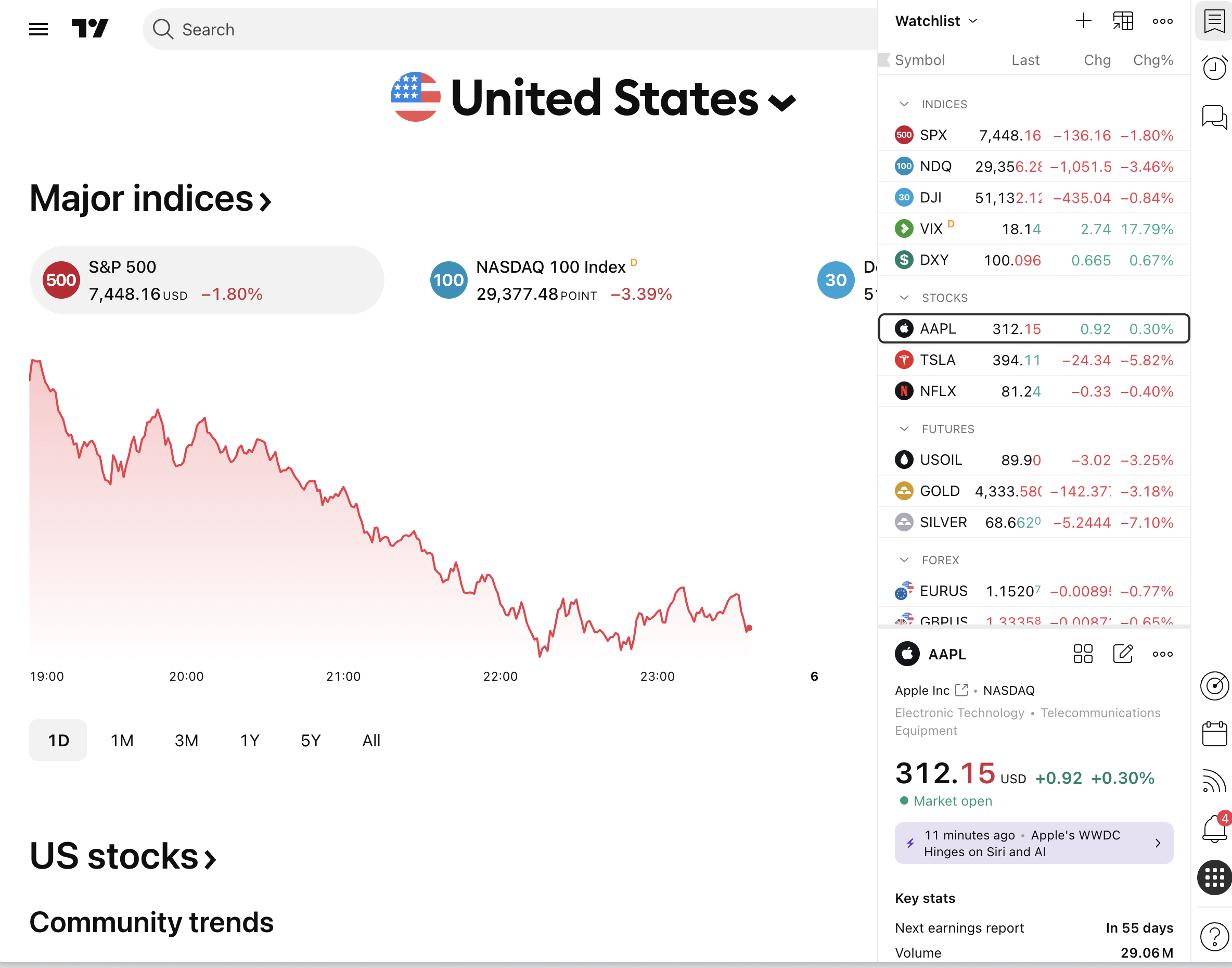
Open TradingView right now. Pull up any chart. It's beautiful. The indicators are crisp, the drawing tools are precise, and the data is real-time. Now ask it one question: which stock should I be looking at today?
It won't answer. That's not a criticism — it's just what TradingView is. It's a world-class analysis platform for stocks you already know about. But for swing traders who hold positions for days and trade around a full-time job, the harder problem isn't analyzing a chart. It's finding the right chart to open in the first place.
That's the gap a TradingView companion app is designed to fill. Not replace TradingView — work alongside it. Surface the setup, explain the edge, push the alert to your phone while you're in a meeting. Then you open TradingView to confirm. That's the stack.
TradingView Is a Great Charting Tool. It's Not a Trade Finder.
TradingView has roughly 50 million users worldwide, and for good reason. The charting engine is exceptional. The community scripts library is enormous. The multi-timeframe layout is flexible enough for almost any trading style. If you're a swing trader, you almost certainly have a tab open right now.
But here's the structural problem: TradingView is reactive, not proactive. You bring the ticker. It shows you the chart. The platform has no mechanism to scan a broad universe of stocks, identify which ones match your specific setup criteria, and push that information to your phone while you're away from your desk.
Yes, TradingView has alerts. You can set a price alert on a specific ticker, or — if you know Pine Script, write a custom condition that fires when a stock crosses a threshold. But both of those require you to already know which stock to watch. And writing Pine Script alerts means you're spending time coding infrastructure instead of making trading decisions.
For a swing trader with a day job, this creates a real problem. You can't manually scan 500 charts every evening. You can't watch the open from a conference room. And you can't write and maintain custom Pine Script conditions for every setup you trade. The result: you miss entries. Not because you don't know the setup, but because the tool you're using wasn't built to find it for you.
That's not a TradingView failure. It's a category mismatch. TradingView is an analysis tool. What you also need is a discovery tool, something that proactively scans the market, finds the setups that match your criteria, and tells you about them before the move is halfway done.
What a TradingView Companion App Actually Needs to Do
Not every app that calls itself a "companion" to TradingView actually solves the discovery problem. Some are just screeners that require you to run a manual scan. Others push so many alerts that you stop reading them within a week. A genuine companion app for swing traders needs to do five specific things well.
1. Proactive scanning across a meaningful universe
The app should continuously scan a curated universe of stocks, not just the 20 tickers on your watchlist. If it only monitors what you're already watching, it's not finding you anything new. You need coverage broad enough to surface setups you wouldn't have found on your own.
2. Mobile-first push alerts with context
An alert that says "AAPL, price crossed $195" tells you almost nothing useful. A good companion app sends alerts that explain why the setup triggered: which screen matched, what timeframe, and what the historical edge looks like. That context is what lets you decide in 30 seconds whether it's worth pulling up the chart.
3. Backtested screens with transparent performance data
Every screen should come with its historical Win Rate and Average Return so you know the edge before you act on the signal. An alert without performance data is just noise with a push notification attached.
4. No coding required
If using the app requires Pine Script, Python, or any other programming language, it's not a companion, it's a second job. Pre-built, ready-to-use screens are the point. You should be able to open the app and start getting relevant alerts without writing a single line of code.
5. Alert hygiene that prevents fatigue
Alert fatigue is real. If a companion app sends 80 notifications a day, you'll mute it within a week. The best tools include de-duplication, throttling, and quiet hours so that when an alert fires, it actually means something. For more on this problem, see our guide on how to avoid alert fatigue from stock screeners.
Why Pine Script Alerts Aren't the Answer for Most Swing Traders
TradingView's Pine Script is genuinely powerful. Professional traders use it to build sophisticated strategies, backtest conditions, and automate alert logic. But there's a reason most swing traders with day jobs don't use it: it's a programming language.
Writing a Pine Script alert condition requires you to understand syntax, debug errors, and maintain the script over time as market conditions change. That's a real skill set, and it takes real time to develop. If you're trading around a 9-to-5, that time is already scarce.
But even if you're comfortable with Pine Script, there's a deeper problem. The script only fires on tickers you've already added to your watchlist. You still have to do the discovery work manually, scanning charts, reading news, following Discord channels, to build that watchlist in the first place. Pine Script automates the alert on a stock you already found. It doesn't find the stock for you.
There's also the maintenance burden. Scripts break when TradingView updates its engine. Conditions that worked six months ago may need adjustment. Every hour spent debugging a Pine Script alert is an hour not spent on actual trading research.
The traders who get the most out of TradingView are the ones who pair it with a dedicated discovery layer, something that handles the scanning and alerting, so TradingView can do what it's actually great at: deep chart analysis on a setup that's already been surfaced for you. If you want to go deeper on the no-code approach, our post on stock scanners without Pine Script covers the full comparison.
The Swing Trader's Workflow Gap: Discovery vs. Analysis
Most traders don't distinguish between discovery tools and analysis tools. They're both "trading tools," so they seem interchangeable. But the distinction matters enormously for how you spend your limited time.
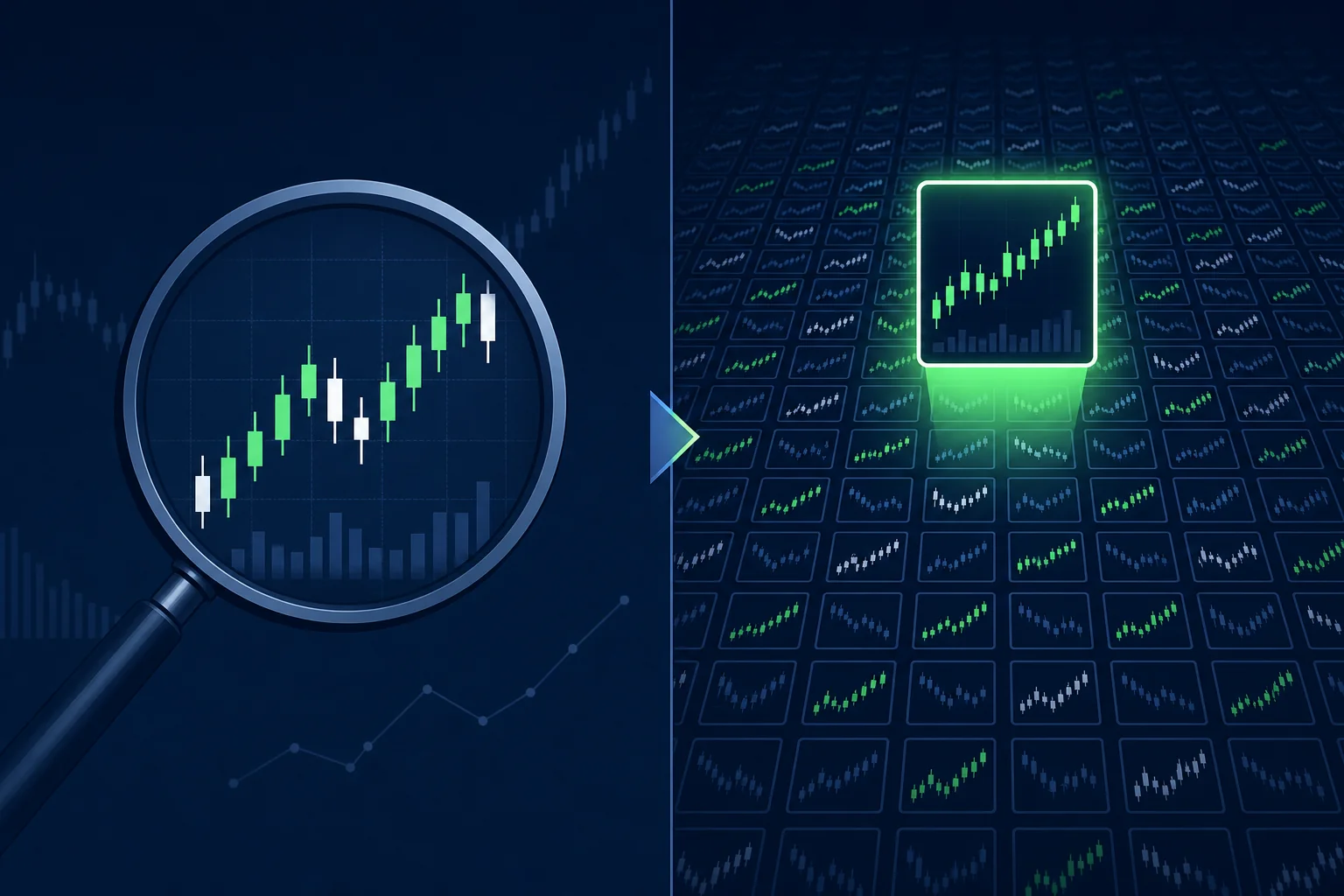
Analysis tools, TradingView, TrendSpider, Finviz, are built around a ticker you bring to them. You type in a symbol, they show you the chart, the indicators, the patterns. They're excellent at answering the question: "Is this stock setting up well?" But they can't answer: "Which stock should I be looking at right now?"
Discovery tools answer that second question. They scan a broad universe continuously, apply setup criteria across every ticker, and surface the ones that match. The output isn't a chart, it's a shortlist of candidates with context attached.
For a swing trader with a day job, the workflow gap is obvious once you see it. You have maybe 30 minutes in the evening to prep for the next day. If you spend 25 of those minutes manually scanning charts to build a watchlist, you have five minutes left to actually analyze the setups you found. That's backwards. The discovery should be automated. The analysis is where your judgment adds value.
The ideal workflow looks like this: a discovery tool scans the market while you're at work, surfaces the two or three setups that match your criteria, and pushes them to your phone with context. You spend your 30 minutes of prep time doing what only you can do, evaluating the chart, sizing the position, setting the plan. For a deeper look at building this kind of system, see our guide on building an efficient trading workflow in 2026.
How ChartMath Fills the Gap TradingView Leaves Open
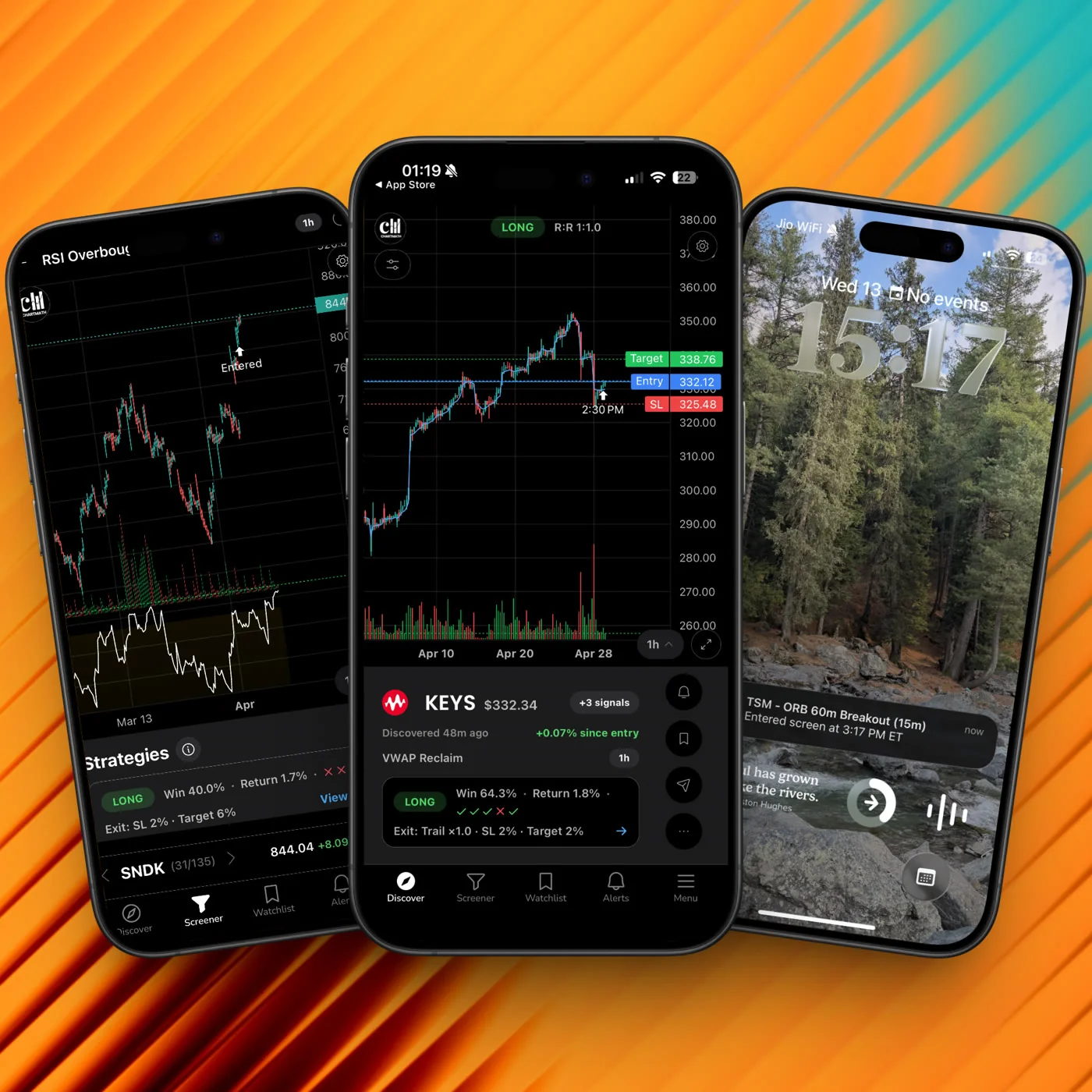
ChartMath is a mobile-first trade-discovery app built specifically for swing traders with day jobs. It's designed to be the discovery layer that sits alongside TradingView, not to replace it, but to answer the question TradingView can't: which stock should I be looking at right now?
200+ curated, backtested screens, no coding required
ChartMath ships with 200+ pre-built technical screens covering setups like breakouts, VWAP reclaims, RVOL spikes, 52-week highs, momentum plays, and more. Every screen has been backtested before it ships. You don't build them, you don't edit them, and you don't need to write a single line of Pine Script. You pick the screens that match your trading style and the app does the rest. For a full breakdown of what's available, browse the ChartMath screens library.
A universe built for US equity swing traders
ChartMath scans 500+ US equities (NYSE/Nasdaq), plus 100 crypto pairs and 11 US futures, across 7 timeframes: 1-minute, 5-minute, 15-minute, 1-hour, Daily, Weekly, and Monthly. The US equity universe is the core, built around the swing trader with a day job who trades NYSE and Nasdaq-listed stocks. Crypto and futures coverage is there for traders who want it, but the product is US-equity-first by design.
The Discover feed: explainable entry cards
The signature surface in ChartMath is the Discover feed, a swipe-first interface that shows you entry cards, one setup at a time. Each card tells you the ticker, the screen that matched, the timeframe, and a plain-English explanation of why the setup triggered. No decoding required. You swipe through, read the context, and decide in seconds whether it's worth a deeper look in TradingView.
Win Rate and Average Return on every screen
Every screen in ChartMath shows its historical Win Rate and Average Return, the two metrics that tell you whether a setup has a real edge. Not a black-box score, not a vague "confidence rating." Transparent backtest data so you know what you're acting on. For more on how to use this data effectively, see our guide on building winning backtesting strategies.
Push and email alerts that fire when it matters
When a ticker enters a screen you've favorited, ChartMath sends an alert via push notification and email. The alert payload carries the ticker, timeframe, screen name, a plain-English reason it fired, a timestamp, and a deep link back into the app. No SMS, no noise, just the information you need to decide whether to act. Alert de-duplication, throttling, and timezone-aware quiet hours keep the volume manageable.
Copilot, not autopilot
ChartMath surfaces setups and explains the edge. It does not place trades, connect to a broker, or make decisions for you. You execute in your own brokerage. That's intentional, the final call is always yours. It's a copilot, not an autopilot.
Start for free
ChartMath is free: every screen, every backtest, every alert, fully unlocked from day one. Everything is available from day one, there's no freemium split.
The ChartMath + TradingView Stack in Practice
The best way to understand how these two tools work together is to walk through a real trading day for a swing trader with a 9-to-5.
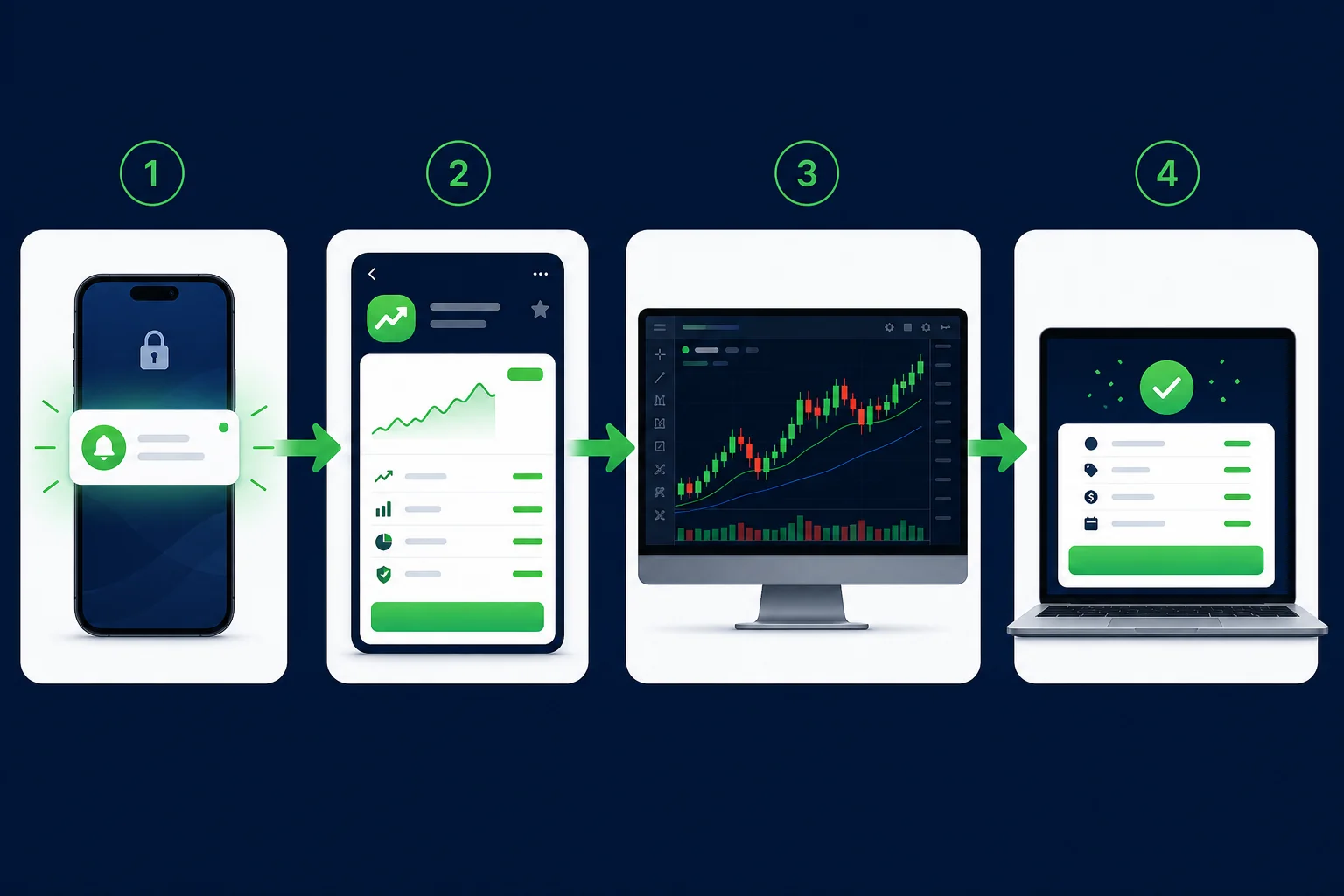
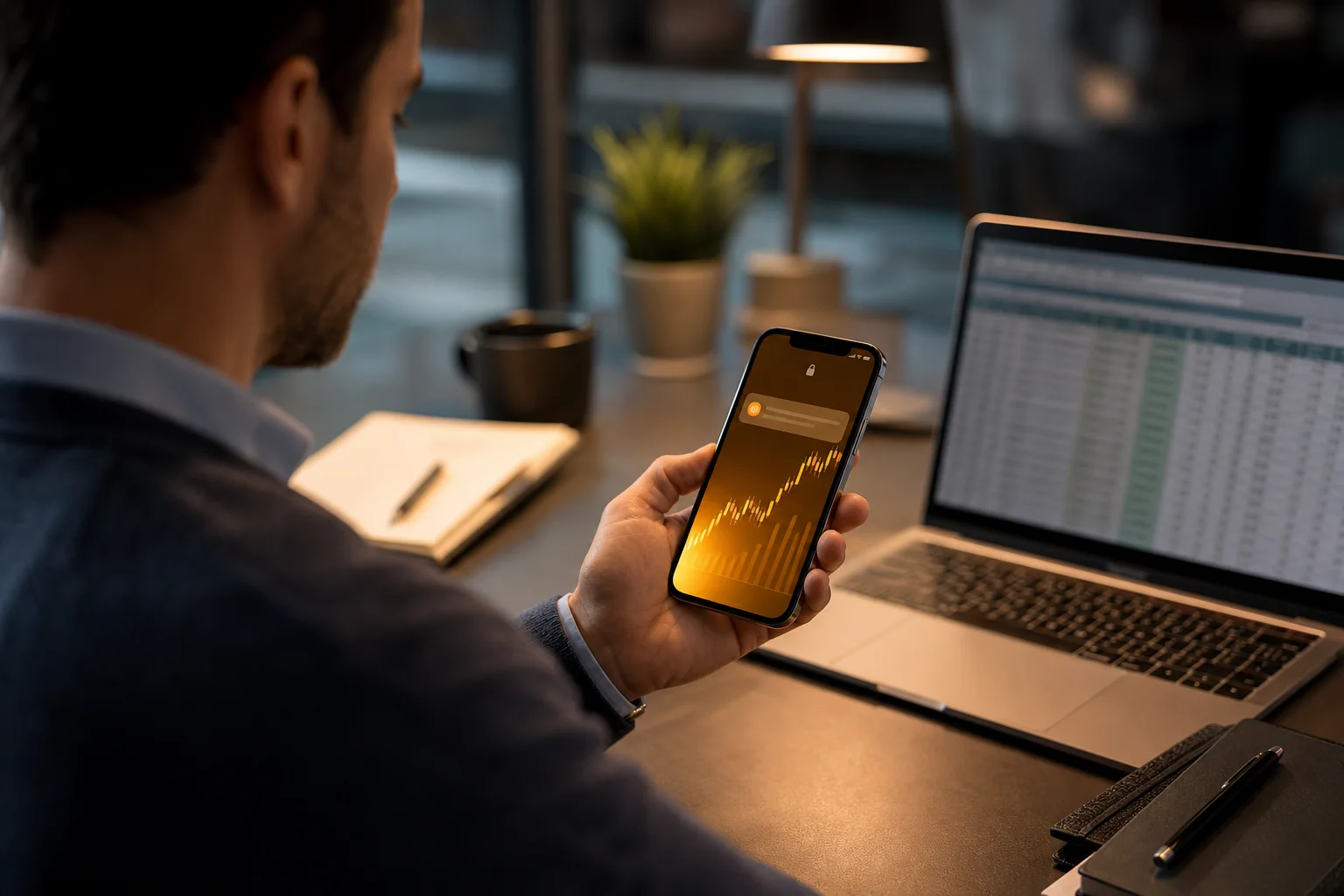
Step 1, The alert fires while you're at work. It's 10:30 AM on a Wednesday. You're in a meeting. Your phone buzzes with a ChartMath push notification: a stock in your favorited screens just triggered a 52-week high breakout on the daily timeframe. The alert tells you the screen name, the timeframe, and a one-sentence plain-English reason it fired. You glance at it, note the ticker, and put your phone down. You haven't missed anything, the setup is logged.
Step 2, You review the card at lunch. You open ChartMath during your lunch break. The Discover feed shows the entry card with the full context: the screen that matched, the Win Rate and Average Return for that screen, and the plain-English explanation of why this ticker qualified today. In 60 seconds, you know whether this is worth a deeper look.
Step 3, You confirm in TradingView after hours. That evening, you open TradingView and pull up the ticker. Now TradingView does what it's best at: you check the chart structure, draw your levels, confirm the volume profile, and decide whether the setup meets your personal criteria. ChartMath found it. TradingView validates it.
Step 4, You execute in your own broker. If the chart confirms the setup, you place the trade in your brokerage. ChartMath has no broker connection and places no orders. The decision and execution are entirely yours.
This is the stack working as designed. Each tool does what it's best at. TradingView doesn't have to be a scanner. ChartMath doesn't have to be a charting platform. For more on building this kind of workflow, see our posts on trading stocks without watching the screen all day and daily chart swing trade setups and scanner workflows.
ChartMath is available on iOS and Android. There's also a read-only web browse layer at chartmath.com/screens where you can explore the full screen library without signing in, useful for getting a feel for the setups before you download the app.
What to Look for in Any TradingView Companion App
If you're evaluating companion apps beyond ChartMath, here's the framework to use. These are the criteria that separate a genuine discovery tool from a screener with a mobile icon.
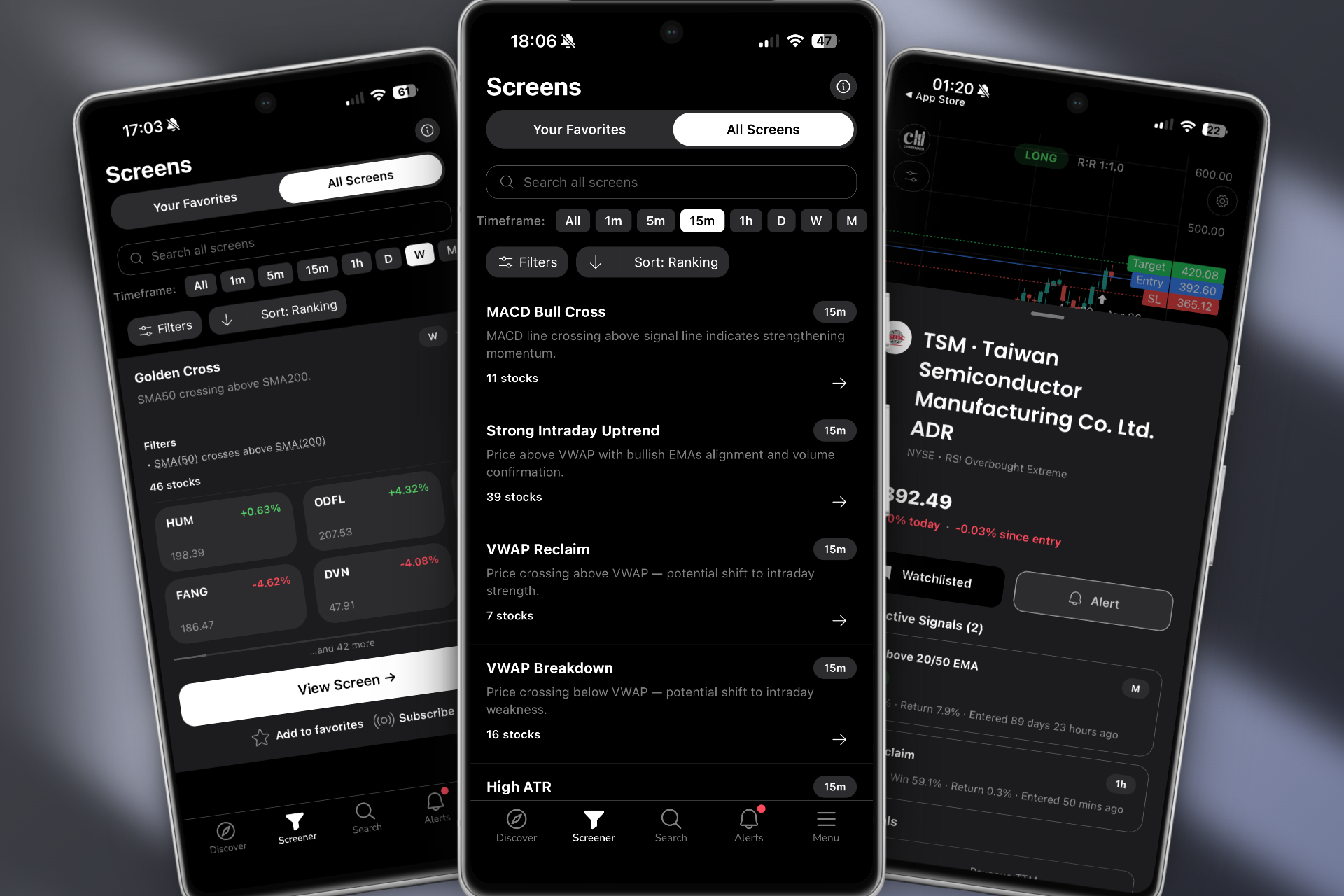
Backtested performance data per screen
Any app can fire an alert. The question is whether the setup behind that alert has a demonstrated edge. Look for tools that show Win Rate and Average Return per screen, with a meaningful sample size. If the app can't tell you how a setup has performed historically, you're trading on hope, not evidence. Be cautious of platforms that show a single "accuracy" score without breaking down the underlying metrics, that's a red flag for black-box scoring.
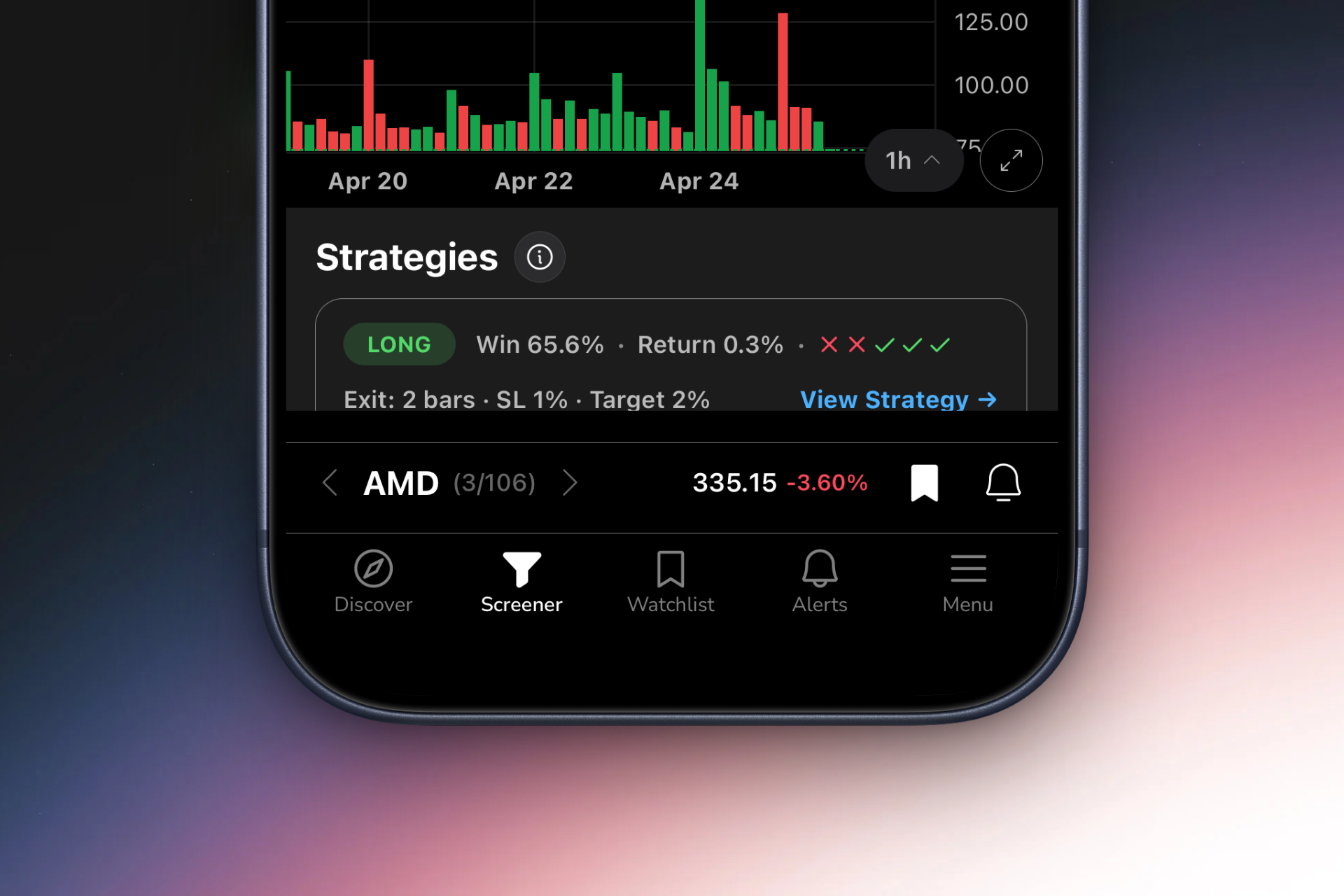
Plain-English alert explanations
An alert that says "MSFT, RSI condition met" is nearly useless if you're away from your desk. A good companion app tells you why the alert fired: which setup triggered, on which timeframe, and what the context is. That explanation is what lets you triage alerts quickly and decide whether to act. For a deeper look at integrating alerts into your workflow, see our guide on integrating trading alerts with your charting platform.
Real push notifications on mobile
Email-only alerts are fine for end-of-day review. But if you're trading around a day job, you need push notifications that reach your phone in real time. Check that the app sends genuine OS-level push notifications, not just in-app badges you only see when you open the app.
Pre-built screens that don't require coding
If the app requires you to build your own screens from scratch, you're back to the Pine Script problem. Pre-built, curated screens that are ready to use from day one are a meaningful time advantage. The best tools also backtest those screens before shipping them, so you're not running untested conditions on live capital.
Coverage broad enough to matter
A companion app scanning 50 stocks isn't going to surface many setups you wouldn't have found yourself. Look for tools that cover a meaningful universe, enough tickers across enough timeframes that the discovery is genuinely additive. For swing traders focused on US equities, coverage of the major NYSE and Nasdaq names across daily and weekly timeframes is the baseline.
Alert hygiene features
De-duplication (so the same setup doesn't fire 10 times), throttling (so you don't get 50 alerts in a minute), and quiet hours (so you're not woken up at 3 AM by a crypto alert) are the difference between a tool you use every day and one you mute after a week. These features are rarely advertised prominently, but they matter more than almost anything else for long-term usability.
Frequently Asked Questions
Does ChartMath replace TradingView?
No. ChartMath is a discovery and alerting layer, it finds setups and pushes them to your phone. TradingView is a charting and analysis platform. They serve different functions and work best together. Most traders use ChartMath to surface candidates and TradingView to confirm the chart before entering a trade.
Can I use ChartMath if I don't know Pine Script?
Yes. ChartMath requires no Pine Script and no coding of any kind. All 200+ screens are pre-built and ready to use from the moment you open the app. You pick the screens that match your trading style and the app handles the scanning and alerting automatically.
What markets does ChartMath cover?
ChartMath covers 500+ US equities (NYSE/Nasdaq), 100 crypto pairs, and 11 US futures, across 7 timeframes: 1-minute, 5-minute, 15-minute, 1-hour, Daily, Weekly, and Monthly. The product is US-first, with all session references aligned to Eastern Time.
How does ChartMath send alerts?
ChartMath sends alerts via push notification and email. There is no SMS. Each alert carries the ticker, timeframe, screen name, a plain-English explanation of why it fired, a timestamp, and a deep link back into the app. Alert de-duplication, throttling, and quiet hours are built in to keep notification volume manageable.
Is ChartMath free to use?
ChartMath is free, and every screen, backtest, and alert is fully unlocked. Everything is available from day one, there's no freemium split.
Does ChartMath place trades automatically?
No. ChartMath is a copilot, not an autopilot. It surfaces setups and explains the edge. It has no broker connection and does not place orders. You execute in your own brokerage. The final decision is always yours.
Can I build my own screens in ChartMath?
No. ChartMath's screens are curated and read-only, you can't create or edit them. That's by design. Every screen has been backtested before it ships, so you're working with validated setups rather than untested conditions. If you want to explore what's available, browse the full library at chartmath.com/screens.
The Right Tool for the Right Job
TradingView is one of the best charting platforms ever built. If you're a swing trader, you should keep using it. But it was never designed to find your next trade for you, and expecting it to do that is like using a scalpel to dig a foundation. The tool is excellent. It's just the wrong tool for that job.
The traders who consistently catch setups while working a full-time job aren't better at scanning charts. They've built a stack where the discovery is automated and the analysis is focused. ChartMath handles the scanning. TradingView handles the confirmation. You handle the decision.
If you're spending your evenings manually refreshing screeners, missing breakouts during the workday, or drowning in Pine Script alerts that fire without context, the gap in your stack is a dedicated discovery layer. ChartMath is free, available on iOS and Android, and takes about five minutes to set up. Every screen, every backtest, every alert, unlocked from day one.
Take the first step today: download ChartMath and let the app surface your next swing trade setup while you focus on your day job. Or explore the full screen library first at chartmath.com/screens, no sign-in required.

See these setups live in ChartMath
200+ curated screens with backtest data. Free. No credit card required.